
When you work in Excel regularly, speed matters. The Quick Access Toolbar helps you work faster by keeping your most-used commands just one click away—no matter which tab you’re on.
By default, this toolbar includes AutoSave, Save, Undo, and Redo, but you can fully customize it to match your workflow.
Table of Contents
Quick Access Toolbar: Getting Started
Adding a command to the Quick Access Toolbar is simple and takes only a few seconds.
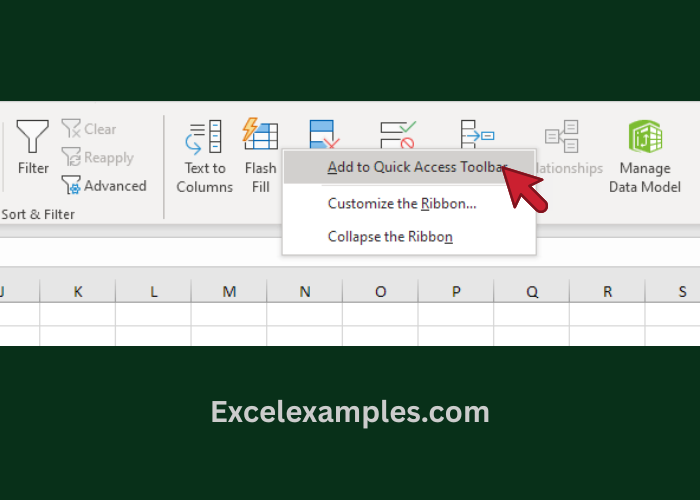
Add a Command from the Ribbon
- Right-click any command on the Ribbon.
- Select Add to Quick Access Toolbar.
That’s it. The command immediately appears on the toolbar, ready for one-click access.
Remove a Command
If you no longer need a command:
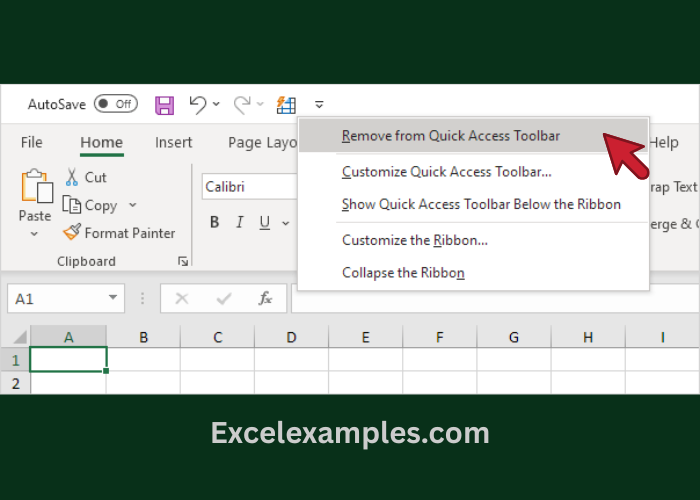
- Right-click the icon on the Quick Access Toolbar.
- Choose Remove from Quick Access Toolbar.
This keeps your toolbar clean and focused on what you actually use.
Add Commands That Aren’t on the Ribbon
Some powerful Excel commands aren’t visible on the Ribbon—but you can still add them to the Quick Access Toolbar.
How to Add Hidden Commands
- Click the down arrow at the end of the Quick Access Toolbar.
- Select More Commands.
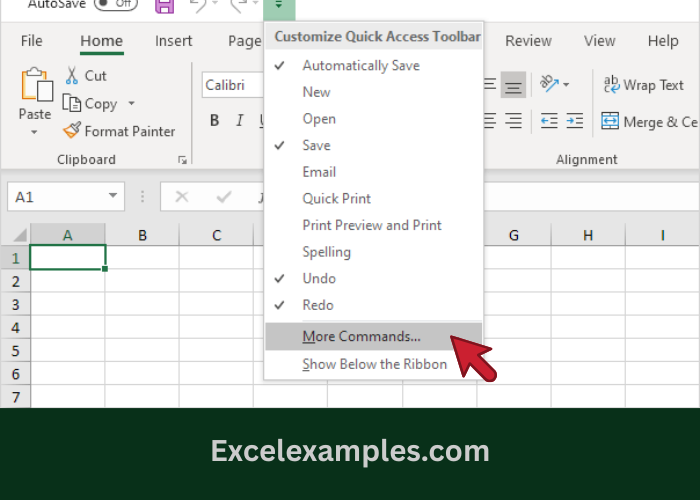
- In the Choose commands from drop-down list, select Commands Not in the Ribbon.
- Choose the command you want and click Add.
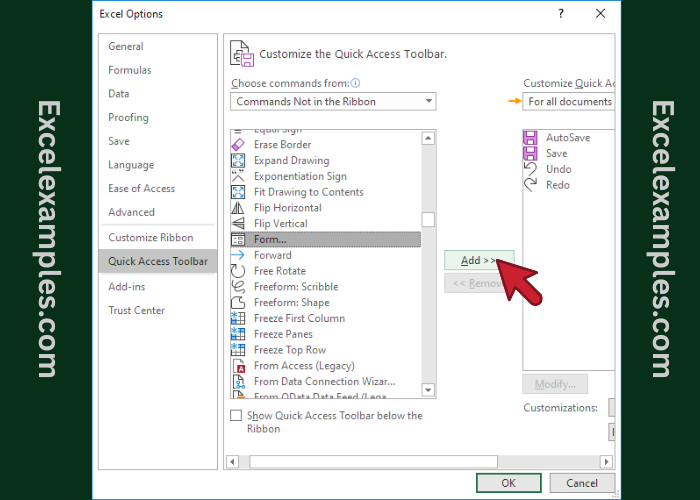
- Click OK to confirm.
You’ll now see the command on your Quick Access Toolbar, even though it isn’t on the Ribbon.
Important Tip
By default, Excel applies Quick Access Toolbar changes to all workbooks.
If you want the customization to apply only to the current workbook, select that option before clicking OK.