
There are two simple ways to merge Excel files:
- Method 1: Move or Copy sheets (best for a few files)
- Method 2: Use VBA (best for many files)
Table of Contents
Method 1: Merge a Few Excel Files (2–10 Files)
This method uses Excel’s built-in Move or Copy feature.
No coding required 👍
Step 1: Open All Excel Files
- Open all the Excel files you want to merge.
Example:- quarter-1.xlsx
- quarter-2.xlsx
👉 Keep all files open at the same time.
Step 2: Select Sheets to Move
- Go to quarter-2.xlsx.
- At the bottom, find the sheet tabs.
- Hold Ctrl and click each sheet tab you want to merge.
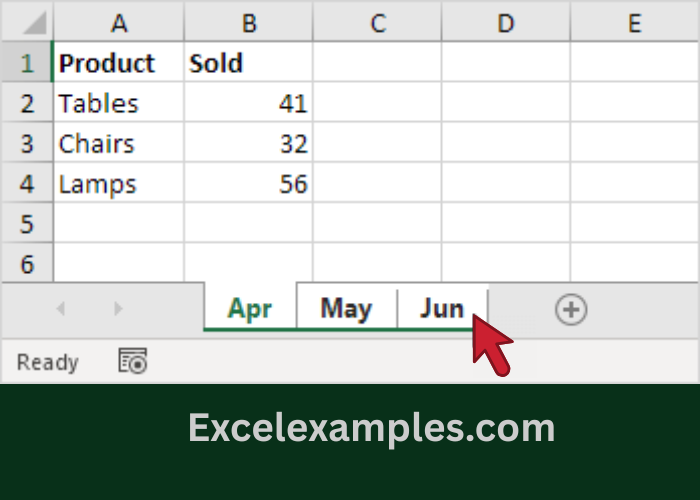
✔ To select many sheets quickly:
- Click the first sheet
- Hold Shift
- Click the last sheet
Step 3: Use Move or Copy
- Right-click on one of the selected sheet tabs.
- Click Move or Copy.
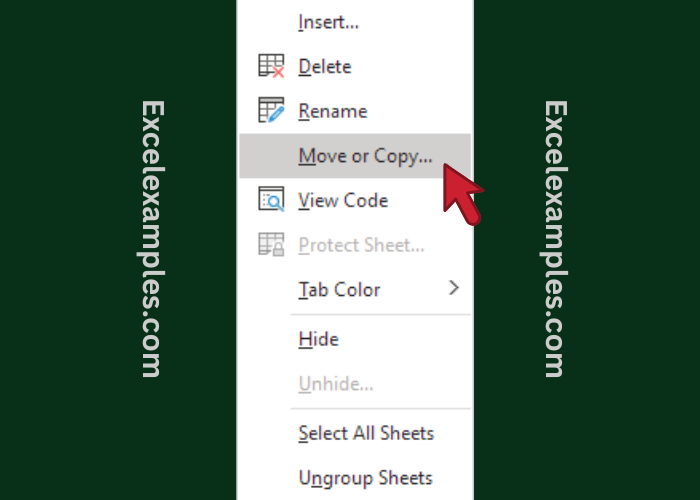
Step 4: Choose Where to Move the Sheets
In the Move or Copy window:
- In To book, choose quarter-1.xlsx
- In Before sheet, select (move to end)
- Check Create a copy
- Click OK
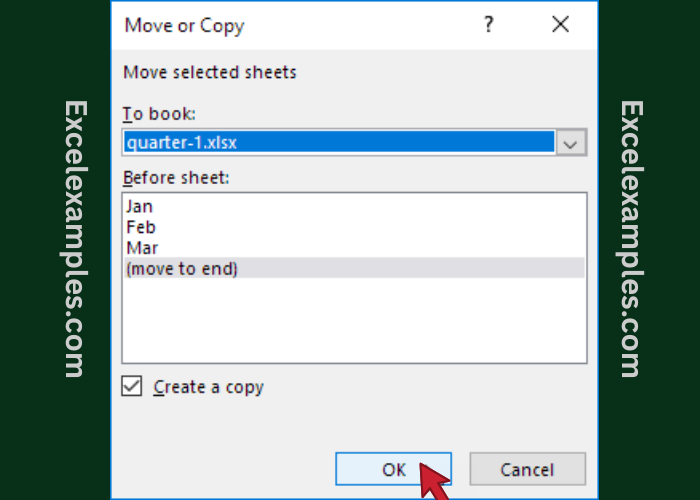
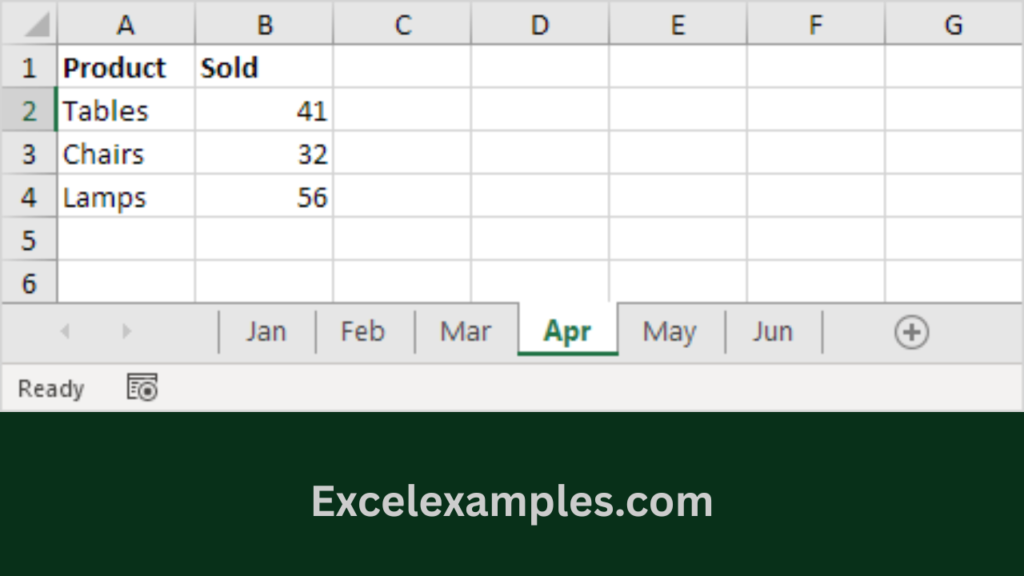
✅ The sheets are now copied into quarter-1.xlsx.
Step 5: Repeat for Other Files
Repeat the same steps for:
- quarter-3.xlsx
- quarter-4.xlsx
- Any other Excel files
Step 6: Save as a New File
- Go to File → Save As
- Save the merged workbook with a new name
👉 This keeps the original files unchanged.
Method 2: Merge Many Excel Files Automatically (Using VBA)
If you have many files (10, 20, 50+), this method saves a lot of time.
⚠️ This uses a macro, but you only need to click a button.
Step 1: Download the VBA File
- Open this link:
https://www.excel-easy.com/vba/examples/import-sheets.html - Download import-sheets.xlsm
Step 2: Prepare Your Files
- Create a folder on your computer:
C:\test - Move all Excel files you want to merge into this folder.
Step 3: Run the Macro
- Open import-sheets.xlsm
- Click the Import Sheets button
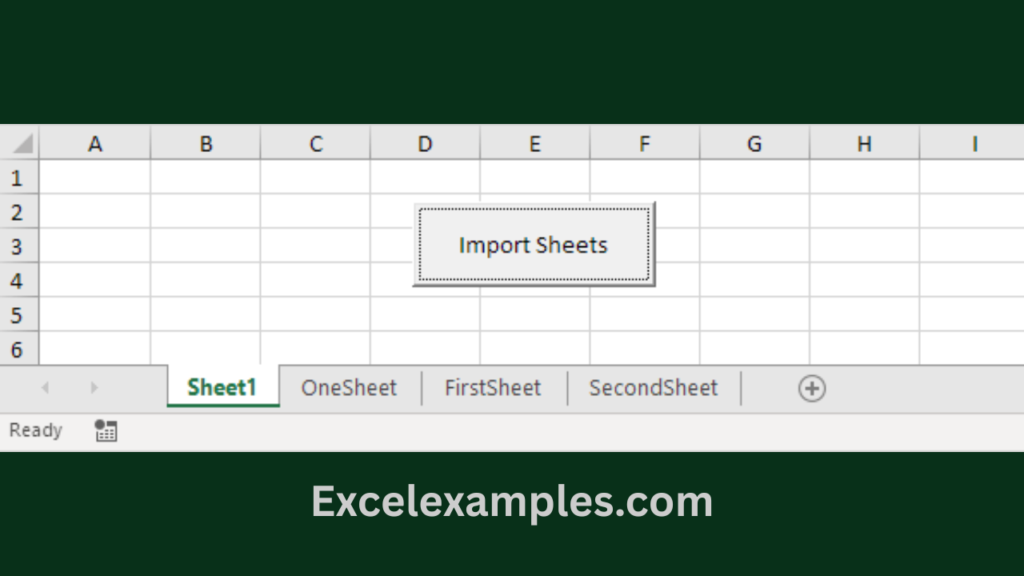
Example
- book4.xlsx → sheet: OneSheet
- book5.xlsx → sheets: FirstSheet, SecondSheet
After clicking the button → all sheets appear in one Excel file.