A worksheet is a single spreadsheet in Excel where you enter, edit, and analyze data. Each worksheet is made up of rows, columns, and cells, and it’s the main place where all Excel work is done.
Multiple worksheets can exist inside one Excel file, which is called a workbook. This allows you to organize related data neatly in one place.
Table of Contents
1. What Is a Worksheet in Excel?
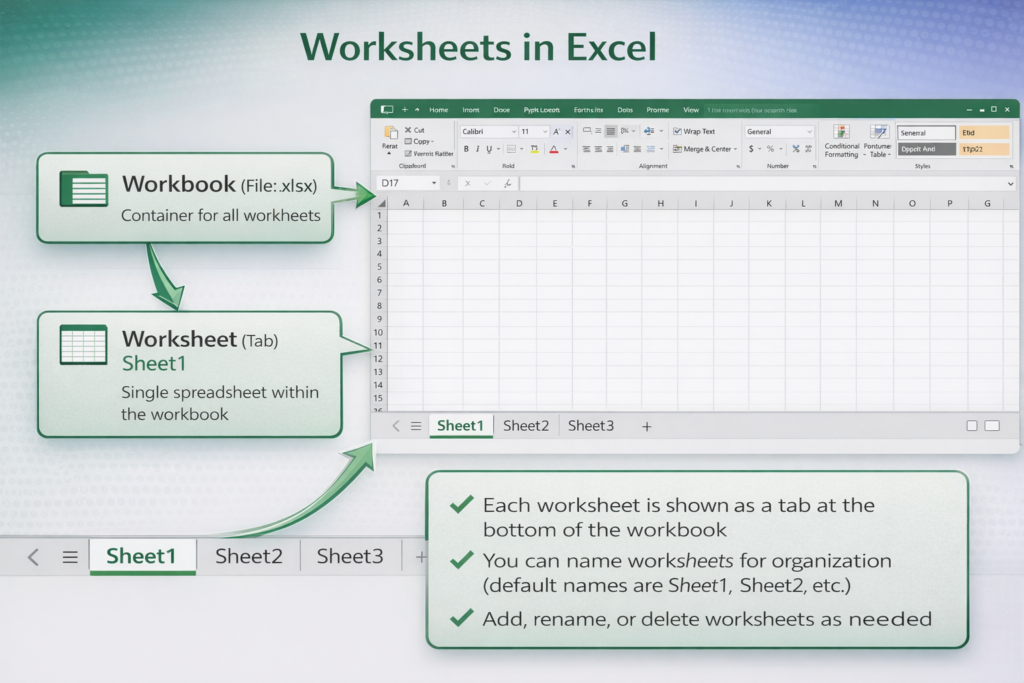
A worksheet:
- Contains a grid of cells
- Allows you to enter text, numbers, and formulas
- Is used for calculations, data entry, and analysis
Think of it this way:
- Workbook = Excel file
- Worksheet = Individual sheet inside that file
2. Worksheet Tabs
When you open a new workbook, Excel usually creates several worksheets automatically. These appear as tabs at the bottom of the Excel window, commonly named Sheet1, Sheet2, Sheet3.
If there are many worksheets, arrow buttons appear to help you scroll through the tabs.
3. Viewing a Worksheet
To open or view a worksheet:
- Click its tab at the bottom of the Excel window
If you can’t see the worksheet tab:
- Use the left and right arrow buttons
- Or right-click the arrows and choose the worksheet from the list
4. Renaming a Worksheet
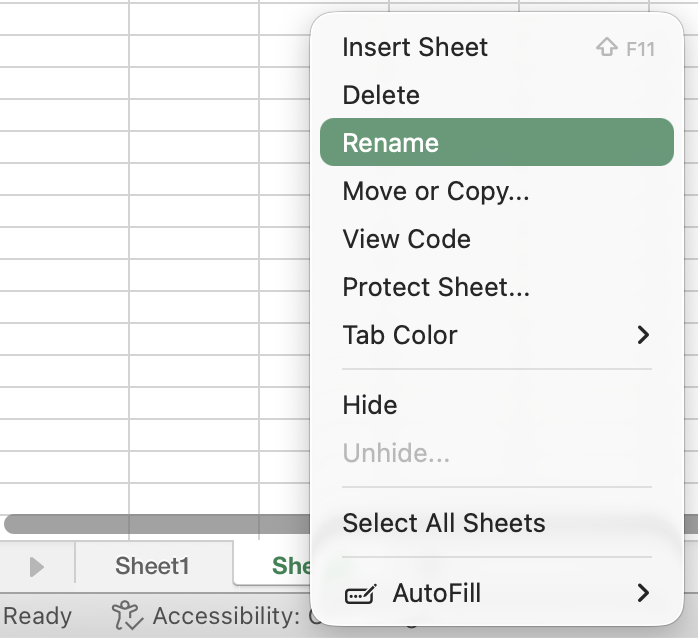
Clear names make worksheets easier to understand.
- Right-click the worksheet tab
- Click Rename
- Type a new name
- Press Enter
📌 Sheet names can be up to 31 characters and cannot include symbols like / \ ? * [ ].
5. Inserting a New Worksheet
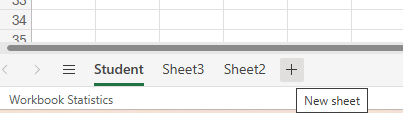
To add a worksheet:
- Click the plus (+) icon next to the sheet tabs
Or:
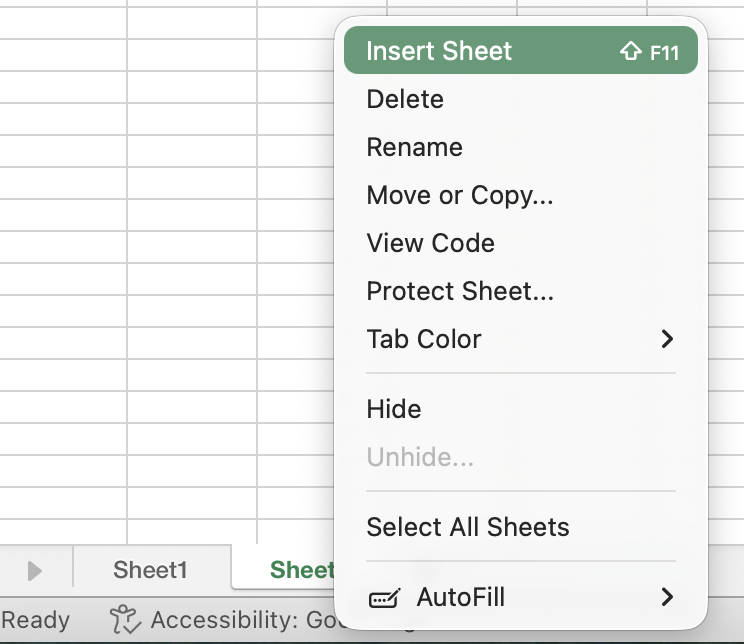
- Right-click a worksheet tab
- Select Insert
A new worksheet will be added to the workbook.
6. Copying a Worksheet
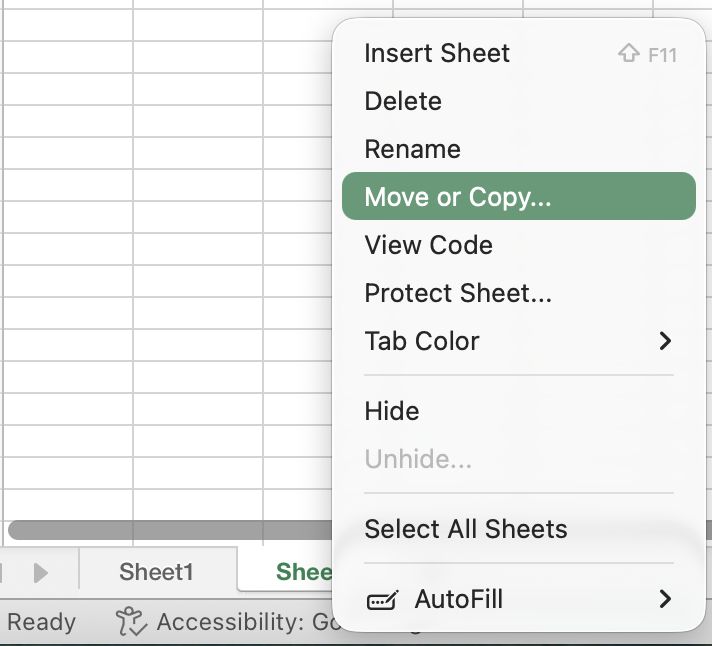
If you need the same layout again (for example, monthly or yearly data), copying saves time.
- Right-click the worksheet tab
- Select Move or Copy
- Check Create a copy
- Click OK
The duplicated worksheet keeps the same structure and formatting.
7. Deleting a Worksheet
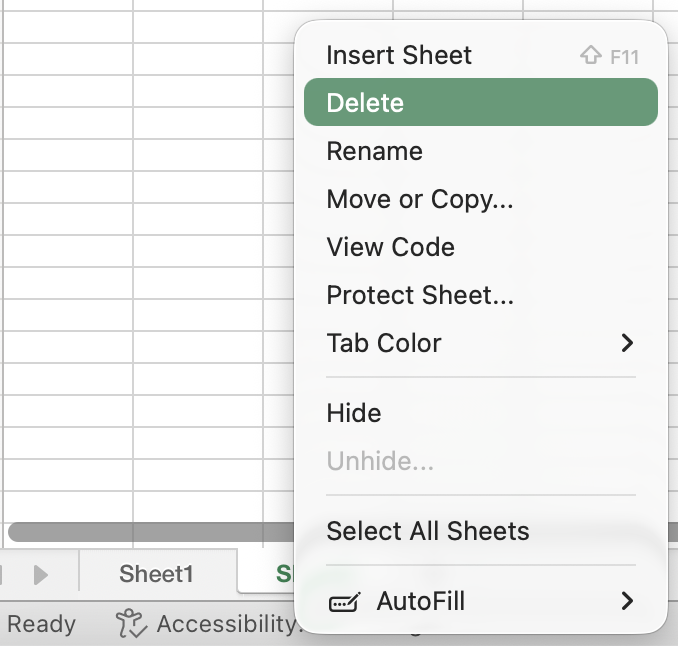
Remove worksheets you no longer need.
- Right-click the worksheet tab
- Click Delete
⚠️ Deleting a worksheet removes all data on it permanently.
8. Hiding and Unhiding Worksheets
You can hide worksheets to keep background data out of sight.
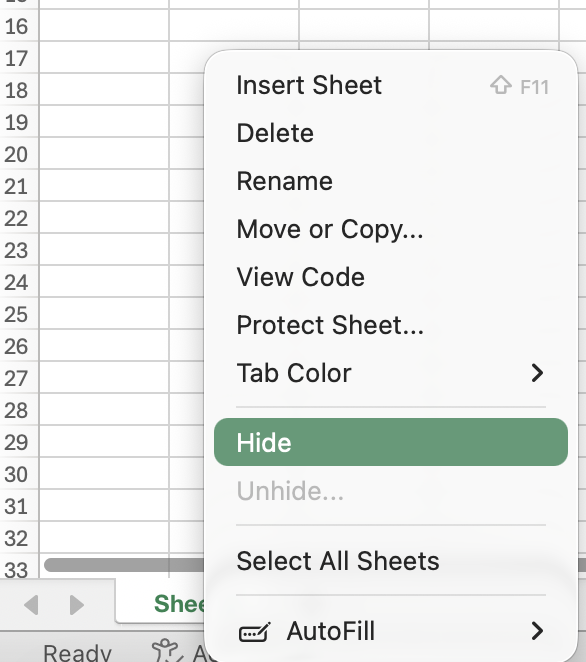
- Hide: Right-click tab → Hide
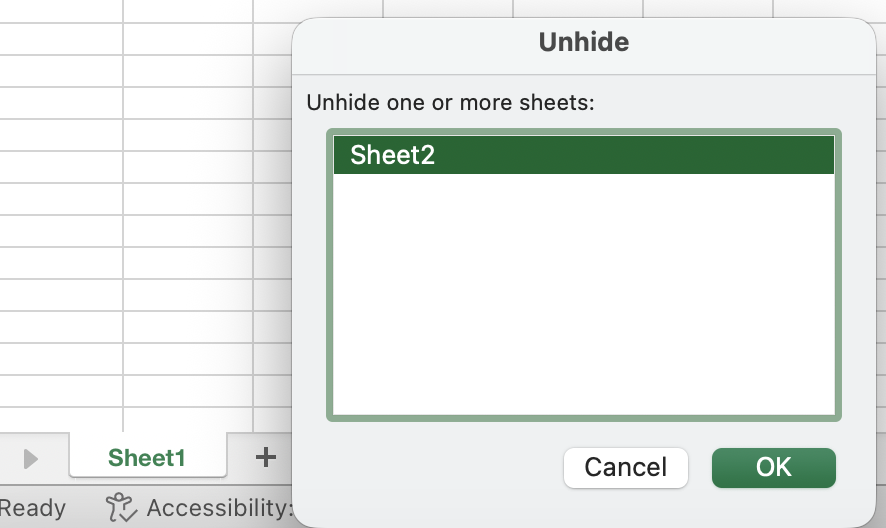
- Unhide: Right-click any tab → Unhide → Select sheet → OK
Hidden worksheets are not deleted.
9. Why Worksheets Are Important
Worksheets help you:
- Organize data clearly
- Separate different types of information
- Keep large Excel files manageable
- Work efficiently without confusion
10. Summary
Worksheets are the core working area in Excel. Learning how to view, rename, insert, copy, hide, and delete worksheets makes managing Excel files much easier and more professional.