
When your text is too long for a cell, Excel can display it on multiple lines inside the same cell.
This makes your data easier to read.
Table of Contents
1. Wrap Text Automatically
Excel can automatically move text to a new line.
Steps:
- Select the cell (e.g., A1)
- Go to the Home tab
- Click Wrap Text (in the Alignment group)

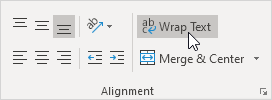
Result:

2. Adjust Column Width
Sometimes you need more space:
- Drag the right border of the column to make it wider

3. Adjust Row Height
To make all text visible:
- Double-click the bottom border of the row

Excel will automatically resize the row height.
⚠️ Note:
- If you manually change row height, Excel won’t auto-adjust
- Just double-click again to fix it
4. Align Text (Optional)
By default, text is aligned at the bottom of the cell.
To move it to the top:
- Select the cell
- Click Top Align (Home → Alignment)

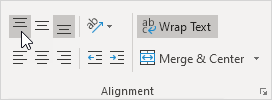
Result:

5. Manual Line Break (Control Exactly Where Text Breaks)
You can decide where the text goes to a new line.
Steps:
- Double-click the cell
- Click where you want to break the line
- Press Alt + Enter

Result:

Remove a Manual Line Break
- Double-click the cell
- Place cursor at the start of the new line
- Press Backspace