
Find & Select in Excel is a powerful tool on the Home tab (Editing group) used to locate specific text, numbers, or formatting within a worksheet or across an entire workbook. It also provides advanced options such as searching within formulas or comments, finding non-contiguous cells, and selecting objects.
The most commonly used feature is Find & Replace, which can be quickly accessed using Ctrl + F (Find) or Ctrl + G (Go To).
Table of Contents
Basic Find & Replace (Ctrl + F)
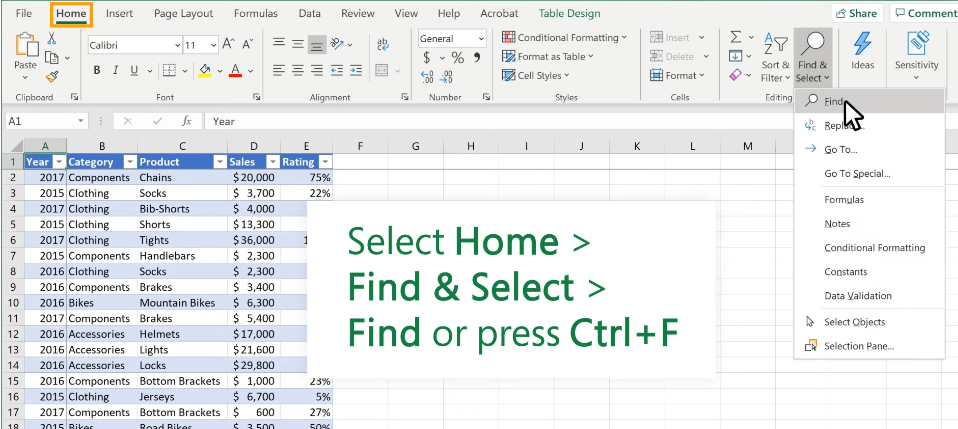
Open Find
- Go to Home → Editing → Find & Select → Find
- Or press Ctrl + F
Enter Search Text
- Type the value you want to find in the “Find what” box
Find Results
- Click Find Next to jump to each occurrence
- Click Find All to display all matching cells in a list
This is the fastest way to locate specific data in Excel.
Advanced Find & Select Options
From Home → Find & Select, Excel also provides additional tools:
- Go To (Ctrl + G)
Jump directly to a specific cell reference or named range. - Go To Special
Select cells based on properties such as:- Formulas
- Constants
- Blanks
- Conditional formatting
- Data validation
- Find by Format
Search for cells with a specific font, fill color, or number format. - Search Scope
Choose to search within the current worksheet or the entire workbook. - Look In Options
Search within Values, Formulas, or Comments.
Selecting Objects in Excel
Excel also allows object selection using Find & Select:
- Shortcut:
Alt + H + FD + O - Click and drag to select multiple objects
- Hold Ctrl to select individual shapes
Replace (Optional)
Switch to the Replace tab in the Find dialog:
- Enter the original value and the replacement value
- Use Replace or Replace All as needed