When you type something like 2/2 into an Excel cell, Excel automatically assumes it’s a date. It then formats that date based on your computer’s regional settings. For example, Excel might display it as 2-Feb or 02/02.
This means the way dates appear in Excel depends on:
- Your system date settings
- The date format applied to the cell
If you don’t like the default format, Excel lets you choose a different short date format or even create your own.
What Is Short Date Format?
A short date format displays dates in a compact form, such as:
- 2/2/12
- 02/02/2026
- 2-Feb
The value stored in Excel does not change—only the display format does.
How to Apply a Short Date Format
To choose a built-in short date format:
- Select the cells containing dates
- Press Ctrl + 1 (or Command + 1 on Mac)
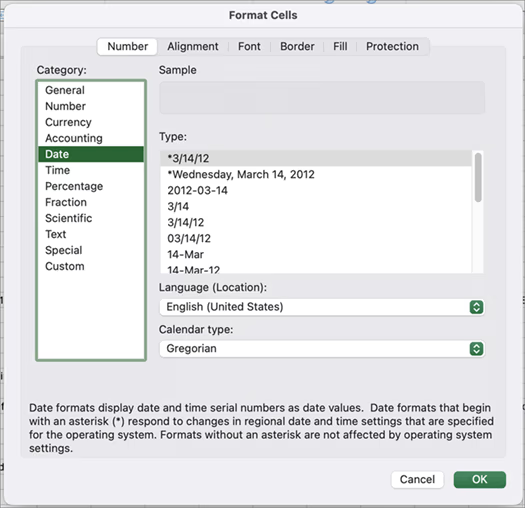
- In the Format Cells dialog box, open the Number tab
- Select Date from the Category list
- Choose a short date format from the Type list
- Click OK
Excel shows a preview so you can see how the date will look before applying it.
About Regional Date Formats
Some date formats have an asterisk (*) in front of them.
These formats change automatically if you change your system’s regional date settings.
Formats without an asterisk stay the same, regardless of system changes.
You can also choose a different country or language using the Locale (Location) option.
Create a Custom Short Date Format
If the built-in formats don’t match what you need, you can create a custom one.
Steps
- Open Format Cells (Ctrl + 1)
- Go to Date, choose a format close to what you want
- Switch to Custom
- Edit the format code in the Type box
- Click OK
Common Date Format Codes
| Display | Code |
|---|---|
| Month (1–12) | m |
| Month (01–12) | mm |
| Month name (Jan) | mmm |
| Full month name | mmmm |
| Day (1–31) | d |
| Day (01–31) | dd |
| Year (2 digits) | yy |
| Year (4 digits) | yyyy |
📌 Important:
If m appears near time codes (h or ss), Excel may treat it as minutes, not months.
Useful Date Tips
- Default date format shortcut:
Ctrl + Shift + # - Insert today’s date:
Ctrl + ; - Dynamic today’s date:
=TODAY() - Seeing
#####? The column is too narrow—resize it.
Key Takeaway
Short date formatting changes how dates look, not what they are. Excel always stores dates as numbers in the background, no matter how they’re displayed.