
Strikethrough is a formatting style that draws a line through text.
👉 It’s useful for showing something is done, canceled, or no longer needed — while still keeping it visible.
Table of Contents
1. Apply Strikethrough
Steps:
- Select the cell or range (e.g., A2:A4)
- Right-click → choose Format Cells
(or press Ctrl + 1)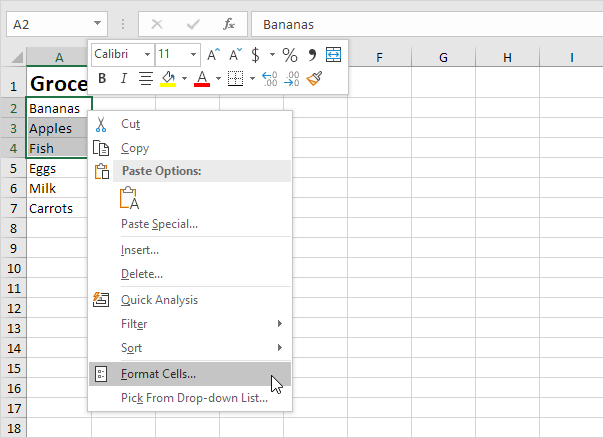
- Go to the Font tab
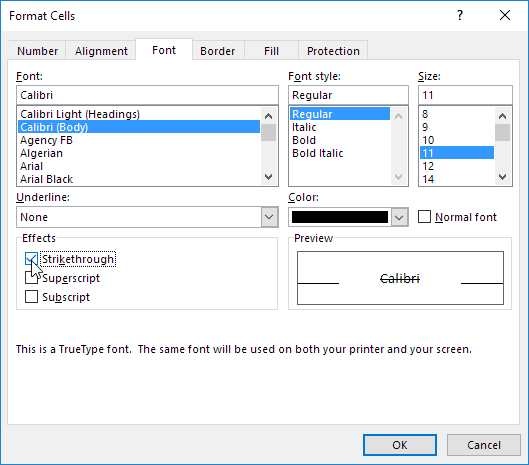
- Check Strikethrough
- Click OK
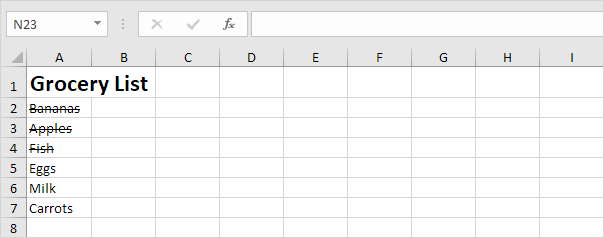
Result: Text now has a line through it
2. Use Keyboard Shortcut (Faster)
Steps:
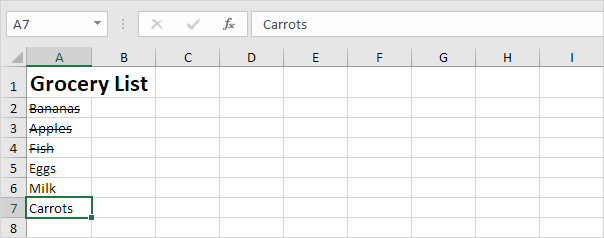
- Select a cell (e.g., A7)
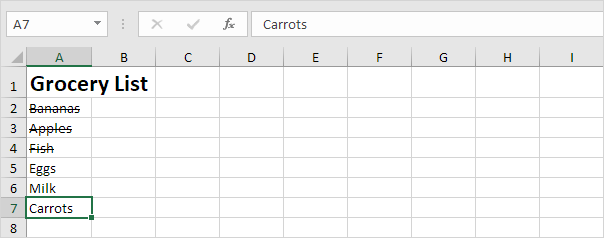
- Press Ctrl + 5
Result:
👉 Press Ctrl + 5 again to remove it
3. Apply to Part of a Cell
You can format only part of the text inside a cell.
Steps:
- Double-click the cell (or use the formula bar)

- Highlight only the text you want
- Press Ctrl + 5
Result:

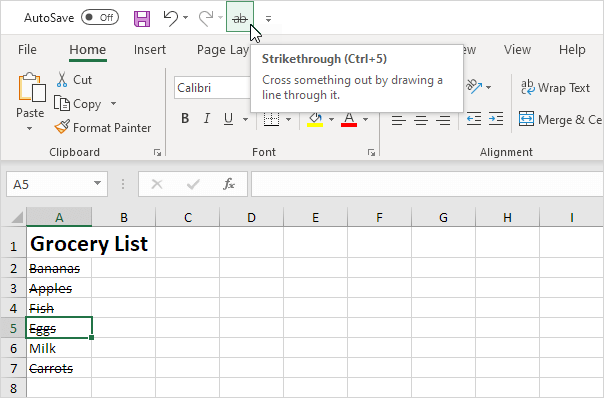
4. Add a Strikethrough Button
You can make it even faster:
- Add a Strikethrough button to the Quick Access Toolbar
- Then just click the button to apply it anytime
5. Advanced
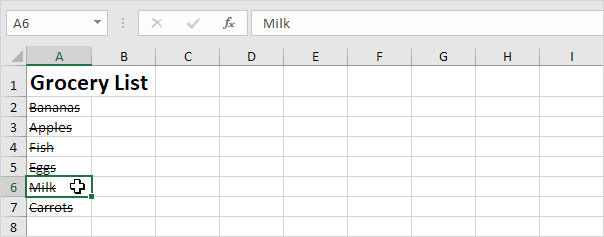
You can make Excel apply strikethrough when you double-click a cell.
Example code:
Target.Font.Strikethrough = True
Cancel = True
👉 After adding this:
- Just double-click a cell → it gets strikethrough automatically
Notes
- Press Ctrl + 5 to toggle on/off
- Excel does not support double strikethrough
- This is only formatting → it does not change the data