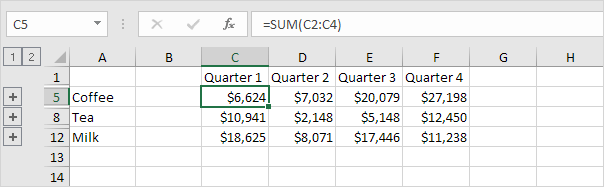
Excel provides a Consolidate feature that allows you to combine data from several worksheets or workbooks into a single summary worksheet. This is very useful when the worksheets are not identical, because Excel can match the data using row and column labels.
In this example, you have three workbooks:
- District1
- District2
- District3
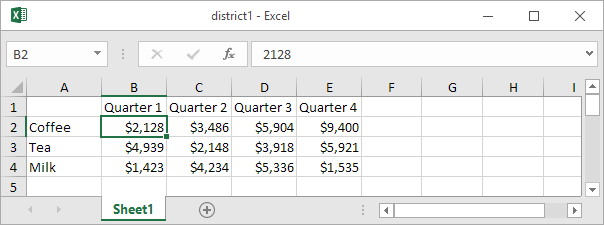
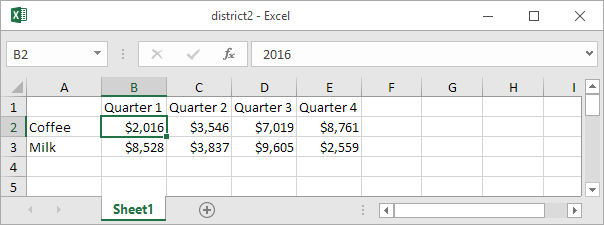
Each workbook contains similar data, but the layout is not exactly the same.
Tip:
If your worksheets were identical, it would be easier to use 3D references (within one workbook) or External References (between workbooks). However, because these worksheets are different, the Consolidate tool is the better option.
Table of Contents
Step-by-Step Guide
1. Open the Source Workbooks
Open all three workbooks:
- District1.xlsx
- District2.xlsx
- District3.xlsx
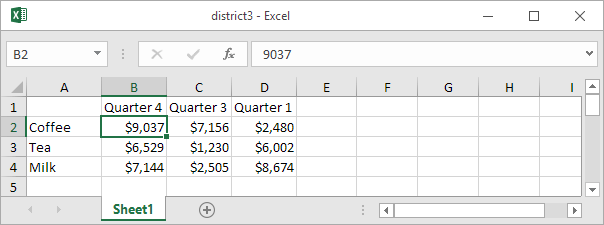
2. Create a New Workbook
Open a new blank workbook. This will contain the consolidated summary.
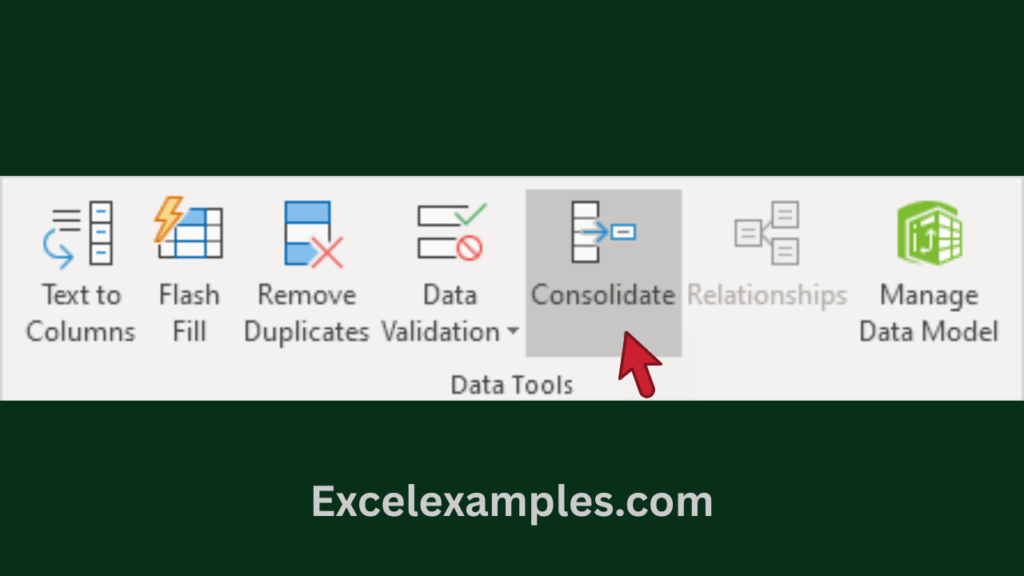
Go to: Data tab → Data Tools group → Consolidate
3. Select the Calculation Method
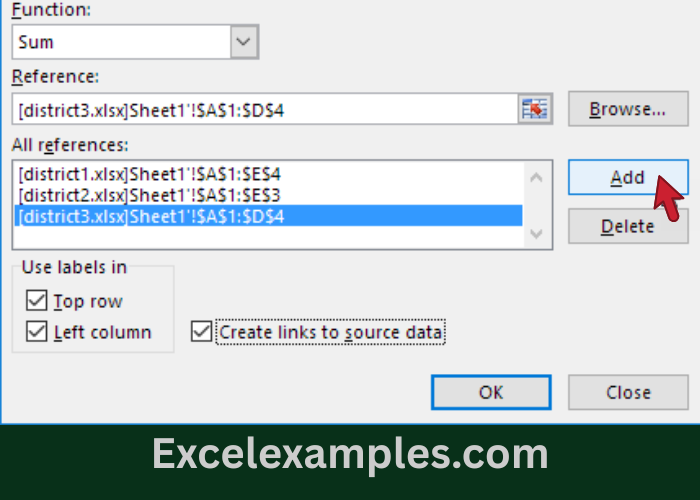
In the Function dropdown menu, choose: Sum
This tells Excel to add together the data from all worksheets.
(You could also choose options like Average, Count, Max, Min, etc., depending on your needs.)
4. Add the First Data Range
- Click inside the Reference box.
- Go to the District1 workbook.
- Select the range A1:E4.
- Click Add.
This range is now included in the consolidation list.
5. Add the Other Worksheets
Repeat the same process for the other workbooks:
- Select A1:E4 in District2 → Click Add
- Select A1:E4 in District3 → Click Add
Now all three ranges should appear in the All References list.
6. Choose Label Options
Check the following boxes:
- Top row
- Left column
- Create links to source data
Why this is important:
- Top row + Left column:
Excel matches and sums data based on the labels, not just cell positions. - If these options are not selected, Excel simply adds cells with the same position, such as:
B2 (District1) + B2 (District2) + B2 (District3) - Because our worksheets are not identical, using labels ensures the correct data is combined.
- Create links to source data:
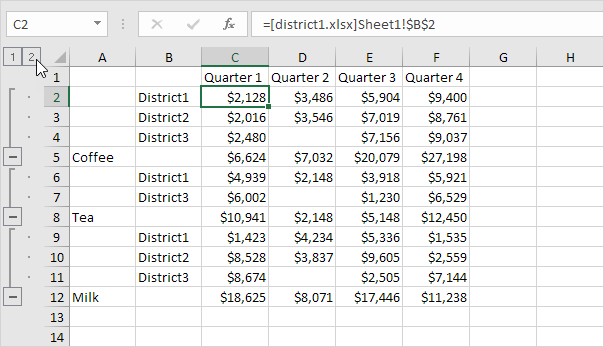
This keeps the consolidated sheet linked to the original files, so the summary updates automatically when the source data changes. It also creates an outline structure for easier navigation.
7. Finish the Consolidation
Click OK.
Excel will create a summary table that combines the data from all three districts.