
In Excel, you can change how many decimal places are displayed without changing the actual number stored in the cell.
You can also round numbers if you want to change the value itself.
Table of Contents
Decrease Decimal Places
To show fewer decimal places, use the Decrease Decimal button.
Step 1: Enter a number
For example, type 2.175 in cell A1.

Step 2: Decrease the decimals
- Go to the Home tab.
- In the Number group, click Decrease Decimal.
- Click it twice.
Now the cell displays 2.2 (one decimal place).

Result:

Important
If you look at the formula bar, the original value is still 2.175.
This means:
- Excel only changes how the number looks
- The actual value stays the same
So calculations will still use 2.175.
Example:
If you multiply the value, Excel uses 2.175, not 2.2.
Increase Decimal Places
To show more decimals, use the Increase Decimal button.
Step 1: Select numbers
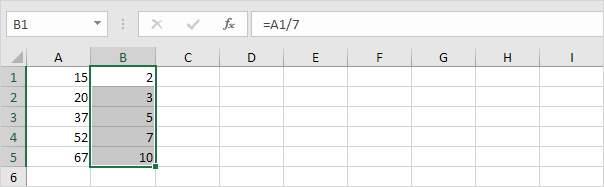
Select a range such as B1:B5.
At first, the numbers may look like whole numbers.
Step 2: Increase decimals
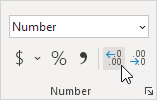
- Go to Home → Number group
- Click Increase Decimal several times.
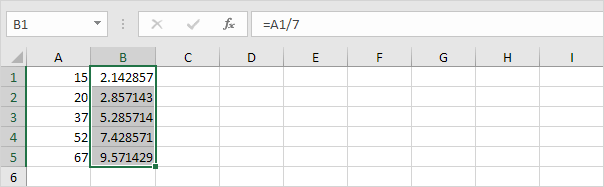
Excel will show more decimal places.
Important:
Excel always stores the exact number, even if you don’t see all the decimals.
Result:
Useful Functions for Decimals
Sometimes you want to change the actual number, not just how it looks.
Excel provides useful functions for this.
1. ROUND Function
The ROUND function rounds a number to a specific number of decimal places.

Note: if you round a number, you lose precision. For example, if you’re using the value in cell B1 in calculations, Excel uses the value 114.73 (not 114.7261).
2. TRUNC Function
The TRUNC function removes decimal places without rounding.

Example:
=TRUNC(A1,2)
This keeps 2 decimal places and removes the rest.
Example:
114.7261 → becomes 114.72
Note: This also changes the stored value, so precision is lost.
3. Extract Only the Decimal Part
To get only the decimal portion of a number:

=A1-(A1)
Example:
If A1 = 5.75, the result will be 0.75.