
Excel allows you to enter fractions, change fraction formats, and display fractions in different ways.
Table of Contents
1. Enter a Fraction in Excel
Mixed fraction
To enter 1 4/7 (one and four sevenths)

Simple fraction
To enter 4/7, type:
0 4/7
The 0 is important, because without it Excel may think you are entering a date.
Example:
4/7→ may become a date0 4/7→ becomes the fraction 4/7
After entering the fraction, Excel automatically applies a Fraction format.
You can see the decimal value of the fraction in the formula bar.
2. Check the Fraction Format
To view or change the fraction format:
- Select the cell.
- Right-click the cell.
- Click Format Cells.
- Choose Fraction.
Excel usually applies Up to one digit by default.
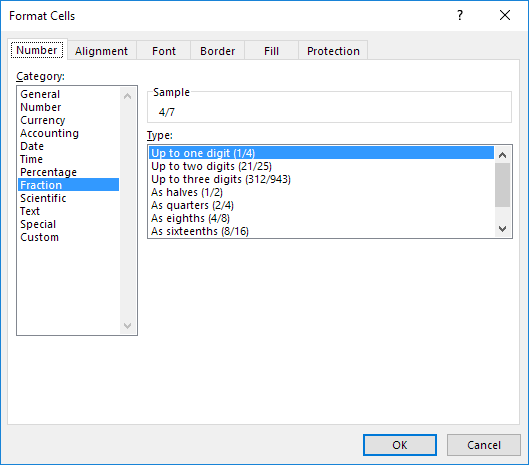
Examples:
- Up to one digit → fractions like
4/7 - Up to two digits → fractions like
4/11 - Up to three digits → fractions like
1/148
3. Excel May Round Fractions
If the format cannot show the correct fraction, Excel may round the fraction.
Example:
If you type:

with Up to one digit, Excel may display:

However, the formula bar still shows the correct decimal value.
To fix this, change the format to Up to two digits.
4. Excel Simplifies Fractions
Excel always reduces fractions to their smallest form.
Example:

2/8 → 1/4
If you want to keep the denominator 8, choose the format:
As eighths (4/8)
This keeps the denominator fixed.
5. Create a Custom Fraction Format
Sometimes Excel doesn’t have the denominator you want.
Example:

Excel converts it to:
4/5
To keep 50 as the denominator:
- Open Format Cells
- Select Custom
- Enter this format:
# ??/50
Now Excel will display fractions with denominator 50.
Example:
- 40/50 stays 40/50
You can change 50 to other numbers like 60 if needed.
6. Display a Fraction as Text (Not for Calculations)
If you only want to display a fraction, not use it in calculations:
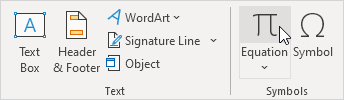
- Go to the Insert tab.
- Click Equation.
- Choose Fraction.
- Enter the numerator and denominator.
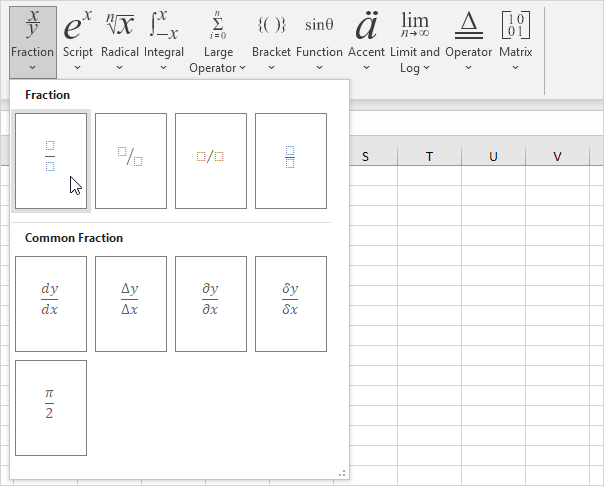
Result:
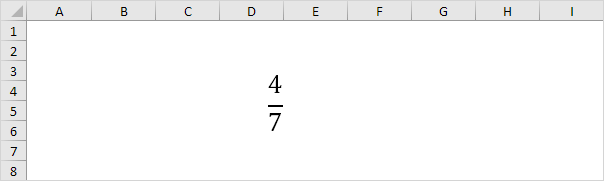
This creates a visual fraction in your worksheet.
Note: This fraction cannot be used in formulas.