
Grouping worksheets lets you edit many sheets at the same time.
This is very useful when your sheets have the same layout, such as sales data for different regions.
Table of Contents
Group Selected Worksheets
Use this when you only want to edit some sheets.
Step 1: Select the Sheets You Want to Group
- Hold down the CTRL key on your keyboard.
- Click the sheet tabs North, Mid, and South.
- Release CTRL.
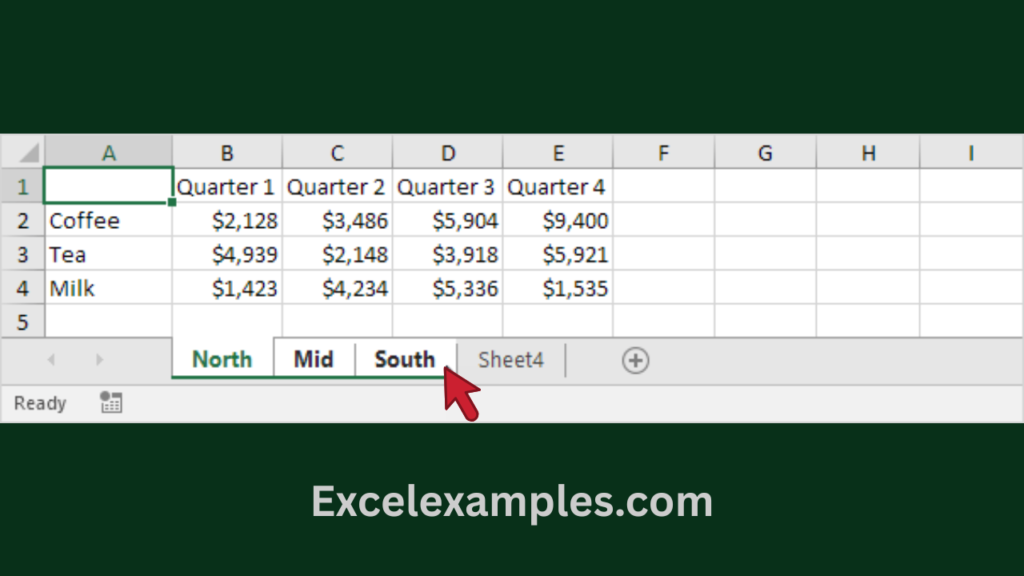
Step 2: Edit the Grouped Worksheets
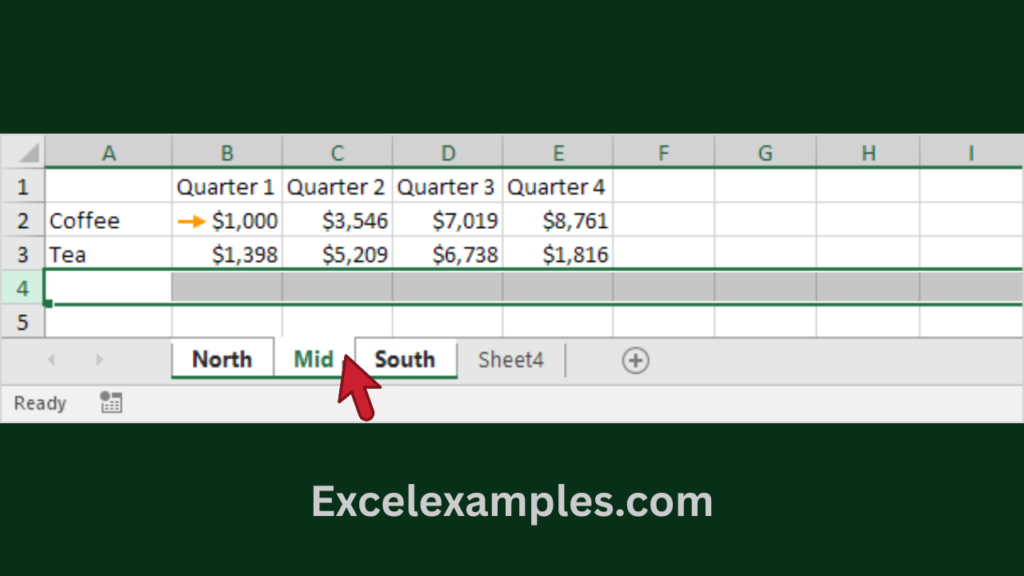
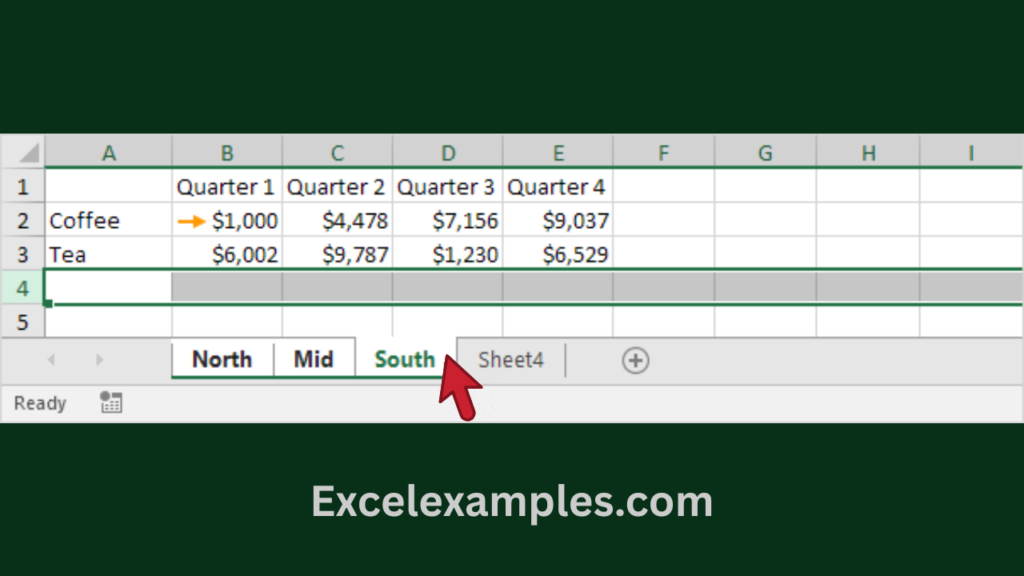
Now, anything you do on one sheet happens on all grouped sheets.
Example:
- Go to the North sheet.
- Change cell B2 to $1000.
- Delete row 4.

Step 3: Check the Other Sheets
- Click the Mid sheet.
- Click the South sheet.
Step 4: Ungroup the Worksheets
Always ungroup when you finish editing.
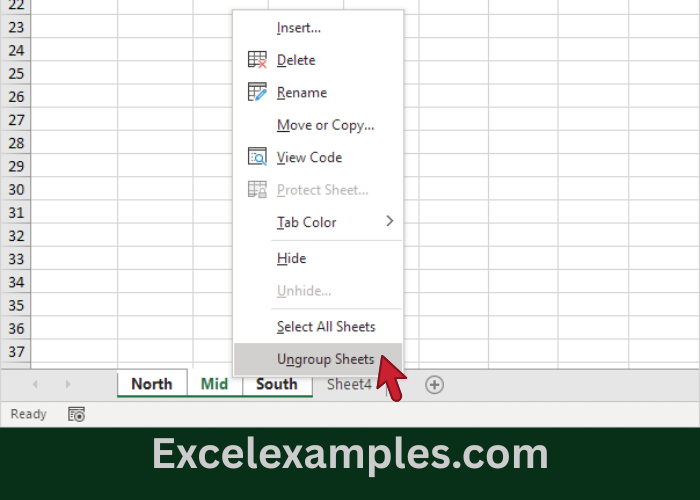
Option 1 (Recommended):
- Right-click any grouped sheet tab.
- Click Ungroup Sheets.
Option 2 (Quick):
- Click any sheet tab outside the group
(for example, Sheet4).
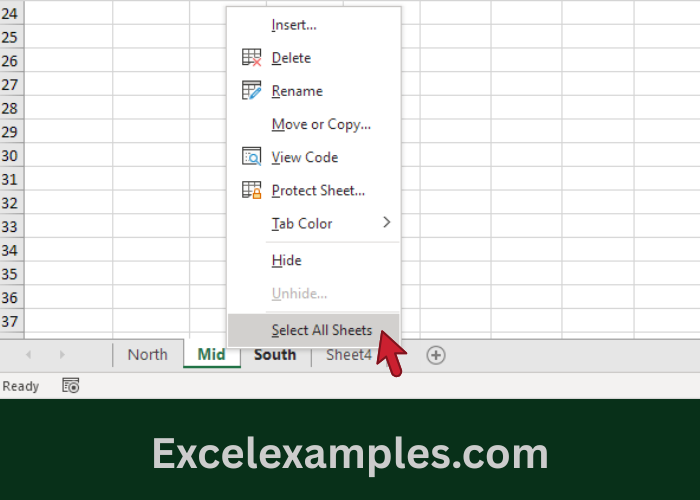
Group All Worksheets at Once
Use this when you want to edit every sheet in the workbook.
- Right-click any sheet tab.
- Click Select All Sheets.
Important Note (Beginner Warning ⚠️)
- When all sheets are grouped, clicking another sheet tab will automatically ungroup them.
- When only some sheets are grouped, you can switch between them without ungrouping.