
Splitting a worksheet lets you view different parts of the same sheet at the same time.
This is very useful when working with large tables or many rows and columns.
👉 You can split the screen:
- Top and bottom
- Left and right
- Or into four sections
Table of Contents
Split the Worksheet Horizontally (Top and Bottom)
This keeps the top rows visible while you scroll down.
- Click any cell in Column A (for example: A7).
- Click the View tab.
- In the Window group, click Split.
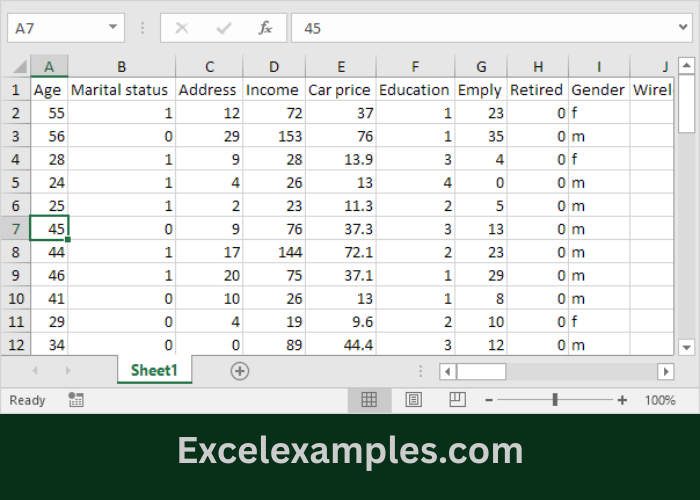
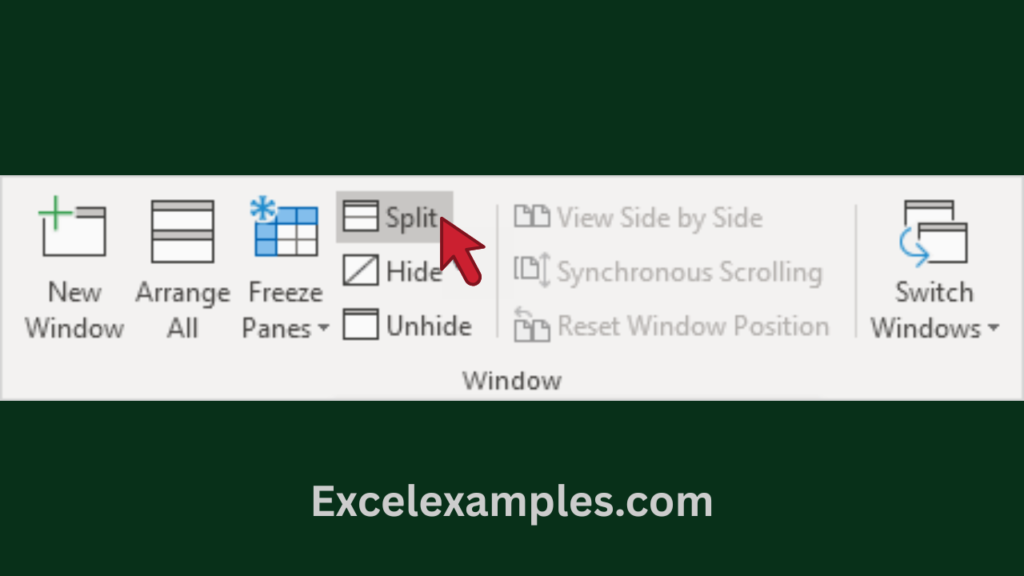
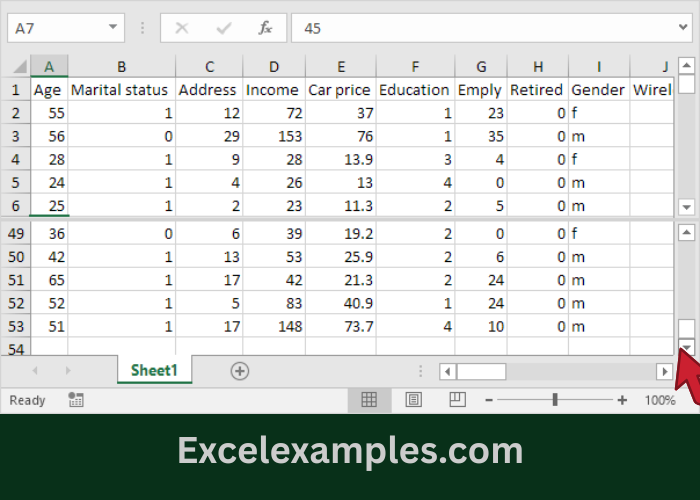
How to use it:
- You will see two vertical scroll bars
- Scroll the bottom pane to move down the sheet
- The top rows stay visible
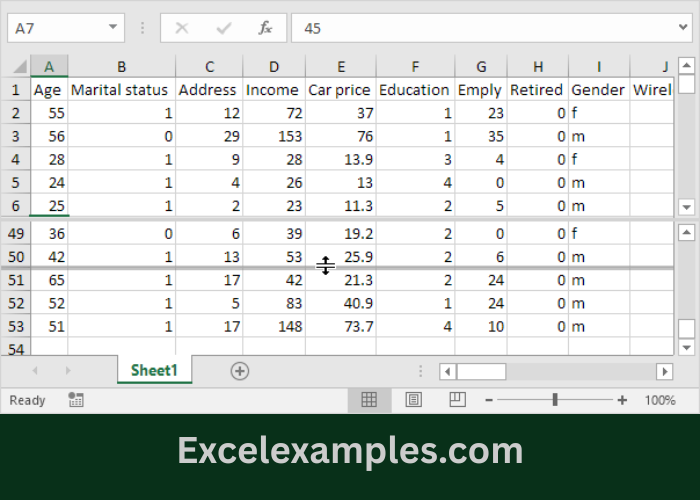
Resize or remove the split:
- Drag the horizontal split bar to adjust pane size
- Double-click the split bar to remove the split
Split the Worksheet Vertically (Left and Right)
This keeps the left columns visible while you scroll right.
- Click any cell in Row 1 (for example: D1).
- Click the View tab.
- Click Split.
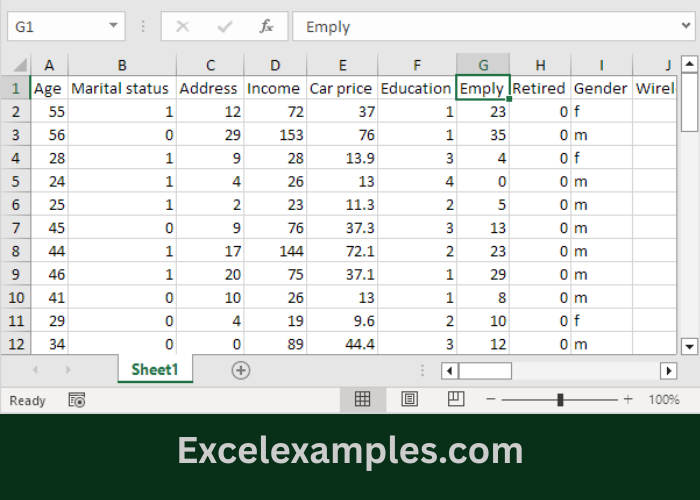
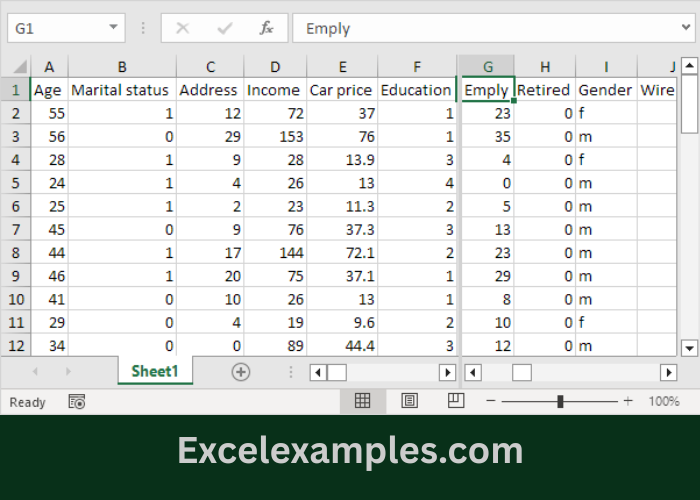
Result:
- You will see two horizontal scroll bars
- Scroll right while keeping important columns visible
Split the Worksheet into Four Panes
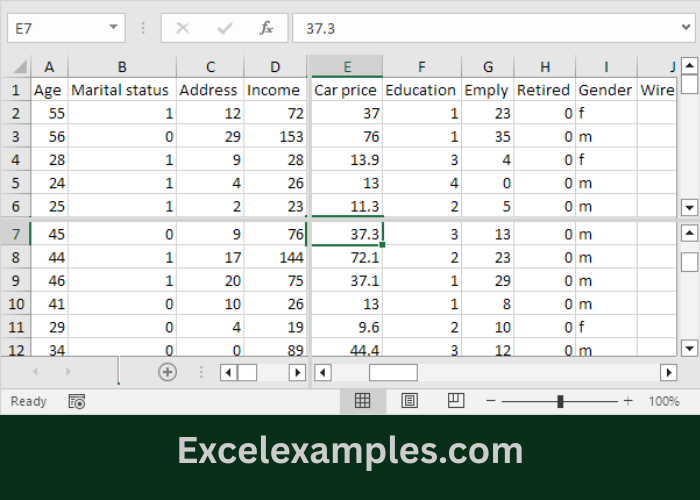
This lets you view four different areas of the worksheet at once.
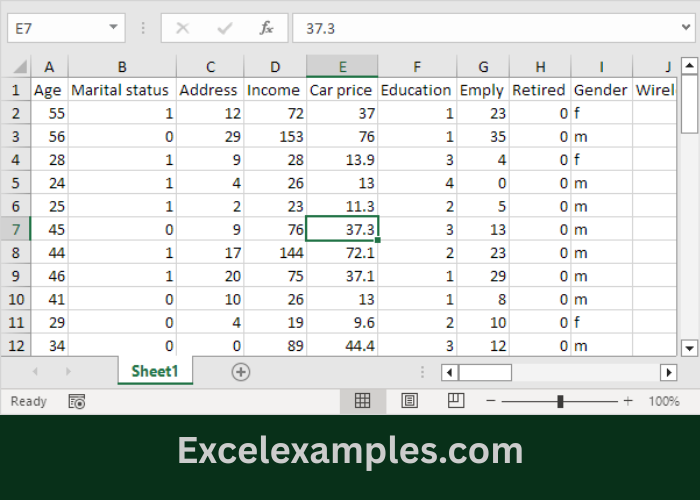
- Click a cell that is NOT in Column A and NOT in Row 1
(for example: D7). - Click the View tab.
- Click Split.
Keyboard Shortcut (Optional)
- Press Alt + W + S to turn Split on or off