In Excel, you can format text as:
- 🔼 Superscript → small text above the line (e.g., x²)
- 🔽 Subscript → small text below the line (e.g., H₂O)
👉 This is useful for math formulas, chemical formulas, and notes
Table of Contents
1. Apply Superscript (x²)
Steps:
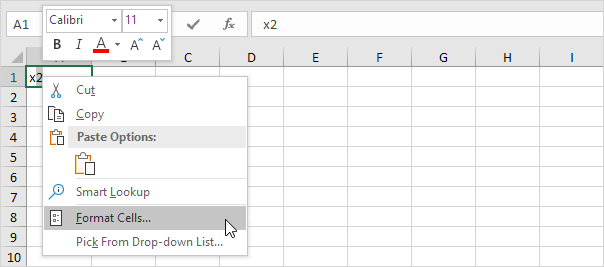
- Double-click the cell (e.g., A1)

- Highlight the character (e.g., 2)

- Right-click → Format Cells (or press Ctrl + 1)
- In the Font tab, check Superscript
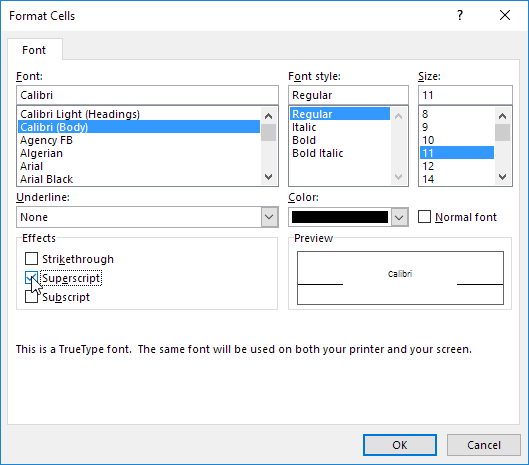
- Click OK
Result: The number appears slightly above (x²)

2. Apply Subscript (H₂O)
Steps:
- Double-click the cell
- Select the character
- Press Ctrl + 1
- Choose Subscript
- Click OK
Result: The character appears slightly below (H₂O)

⚠️ Important Note
- Superscript/subscript is only formatting
- It does NOT calculate anything
👉 Example:
x²(formatted text) ≠ actual square calculation
3. How to Calculate Powers
To square a number, use a formula:

👉 Press Shift + 6 to type the ^ symbol
This gives a real calculated result
4. Apply to Part of Text
You can format only part of a cell:
- Example:
H₂O→ only the “2” is subscript - Just highlight that part before applying format
5. Insert Equations
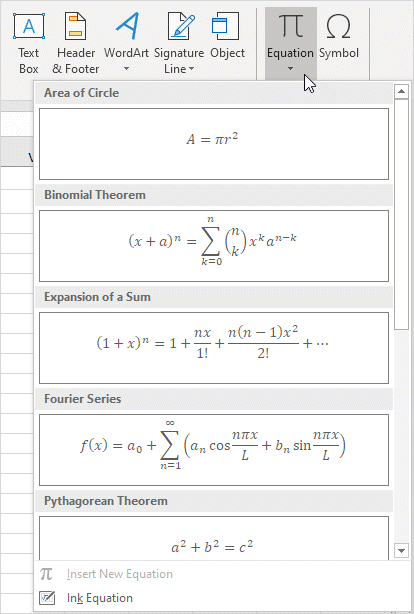
You can also add full math equations:
- Go to Insert → Equation
👉 Useful for more complex formulas