Sometimes worksheets are hidden in Excel. You can easily make them visible again.
Note: An Excel workbook must always have at least one visible sheet.
Table of Contents
Unhide a Worksheet
Step 1: Right-click a sheet tab
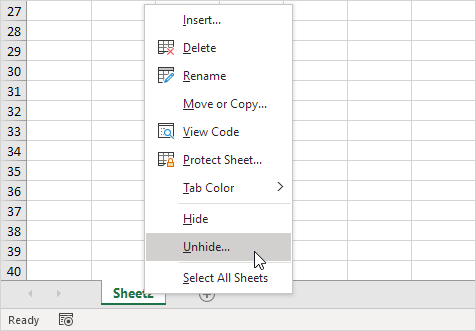
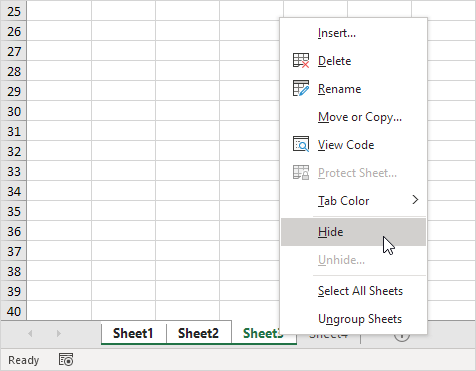
At the bottom of Excel, right-click any visible sheet tab.
Then click Unhide.
Step 2: Choose the sheet(s)
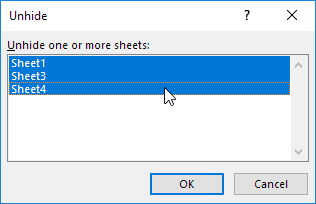
The Unhide dialog box will appear.
Select the sheet you want to show.
Tip: In newer versions of Excel, you can hold CTRL to select multiple sheets.
Step 3: Click OK
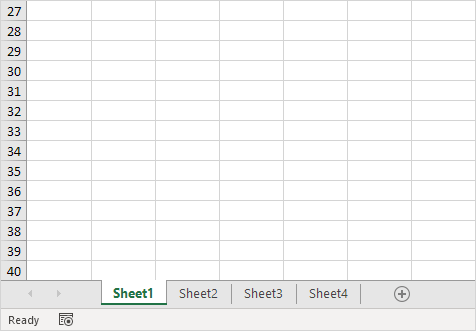
The selected sheets will now appear in the workbook.
Hide a Worksheet
If you want to hide sheets:
- Hold CTRL and select the sheet tabs.
- Right-click one of the selected tabs.
- Click Hide.
The selected sheets will be hidden.
If Worksheet Tabs Are Missing
Sometimes the sheet tabs at the bottom disappear. Here are two ways to fix it.
Method 1: Expand the tab area
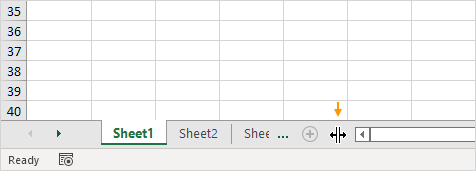
- Move your mouse to the left side of the horizontal scrollbar.
- Drag the divider arrow to the right.
This will reveal the hidden worksheet tabs.
Method 2: Turn sheet tabs back on
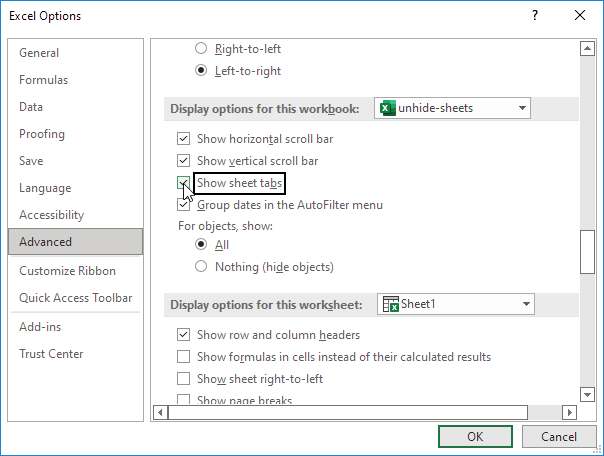
- Click File.
- Click Options.
- Select Advanced.
- Scroll to Display options for this workbook.
- Check Show sheet tabs.
- Click OK.
The sheet tabs should now appear again.
Advanced: Hidden vs Very Hidden Sheets
Excel can hide sheets in two ways:
- Hidden → can be unhidden normally
- Very Hidden → cannot be unhidden using the Unhide button
Very hidden sheets are usually controlled using VBA.
VBA Code to Unhide All Sheets
The following code will unhide all hidden and very hidden sheets.
Sub UnHide()Dim sheet As WorksheetFor Each sheet In Worksheets
    sheet.Visible = True
NextEnd Sub
This code loops through all worksheets and makes them visible.