The Formula Bar in Excel shows the value or formula of the active cell. It allows you to enter, view, and edit formulas easily.
Where Is the Formula Bar?
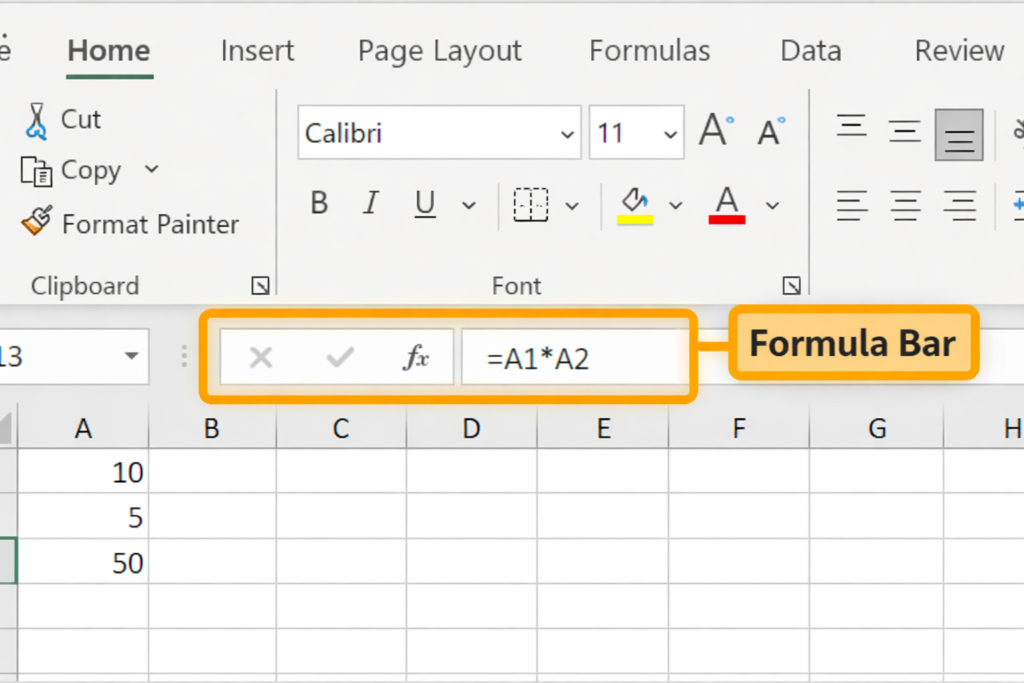
The Formula Bar is located below the Ribbon and above the worksheet area.
To Enter a Formula:
- Select a cell.
- Type an equal sign (=) to tell Excel you are entering a formula.
- Type the formula (for example:
A1*A2) and press Enter.
Excel will display the result in the cell and the formula in the Formula Bar.
Note: Use the asterisk (*) to multiply numbers in Excel.
Editing a Formula
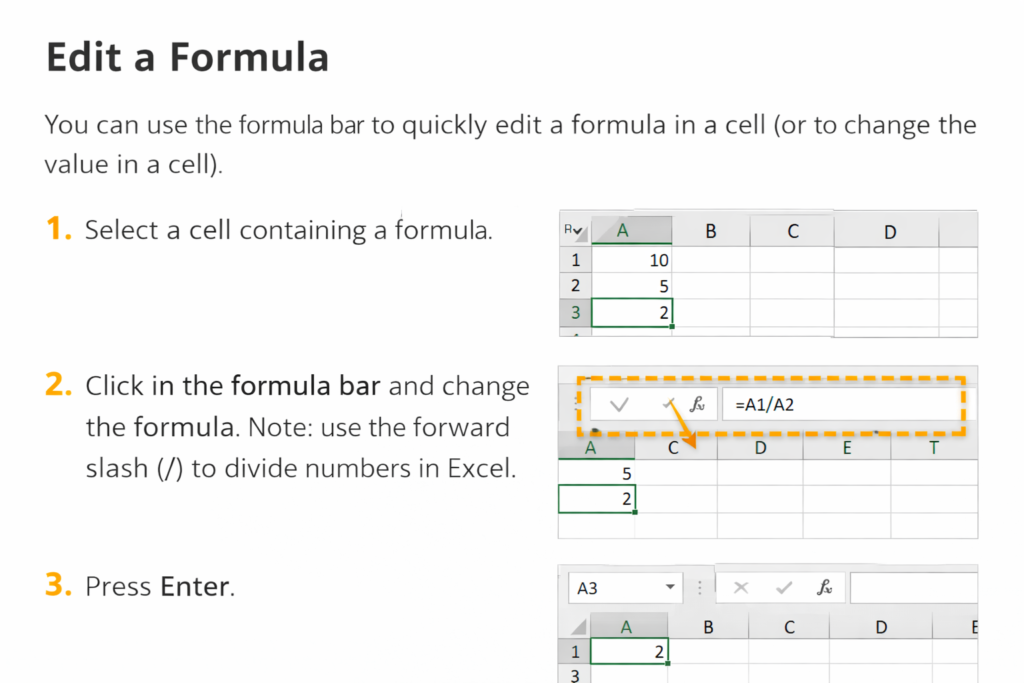
You can use the Formula Bar to quickly edit an existing formula or change a cell’s value.
Steps:
- Select the cell that contains the formula.
- Click inside the Formula Bar and modify the formula.
- Press Enter to apply the change.
Note: Use the forward slash (/) to divide numbers in Excel.
Show or Hide the Formula Bar
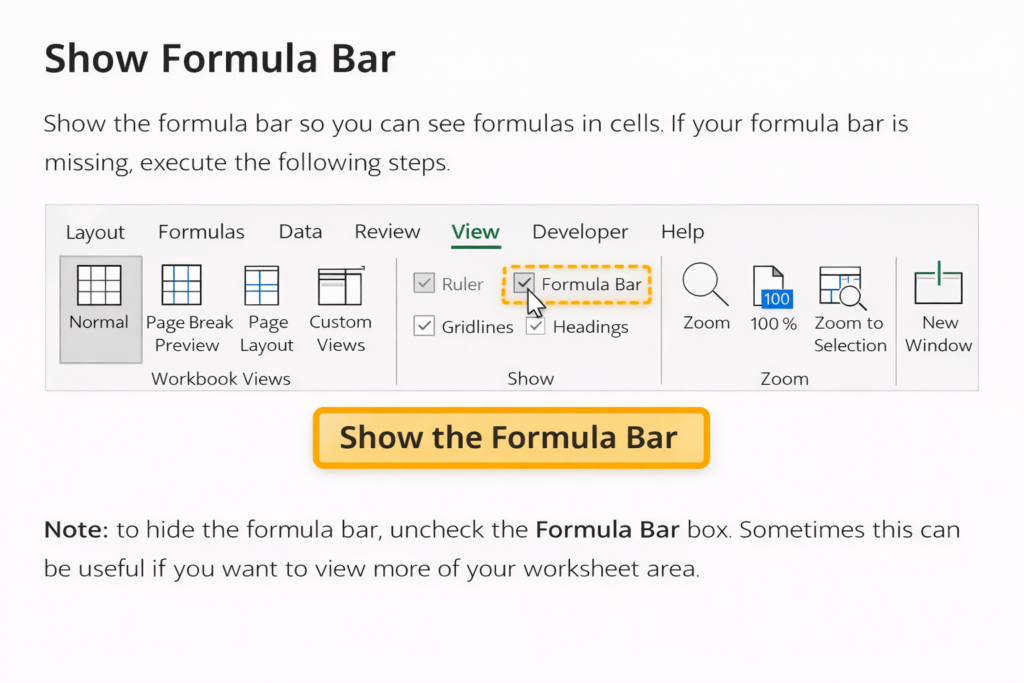
If the Formula Bar is missing, you can turn it back on.
Steps:
- Go to the View tab.
- In the Show group, check the Formula Bar box.
To hide it, simply uncheck the same box. This can be useful if you want more worksheet space.
Expand the Formula Bar
For long formulas (such as nested IF formulas), you can expand the Formula Bar.
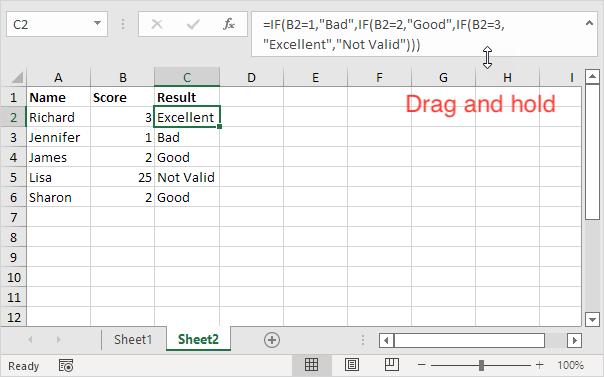
Steps:
- Hover over the bottom edge of the Formula Bar until a two-headed arrow appears.
- Click and hold the left mouse button.
- Drag downward to expand it.
Shortcut: Press Ctrl + Shift + U to quickly expand or collapse the Formula Bar.
Insert a Function Using the Formula Bar
If you are new to Excel functions, the Insert Function button can help.
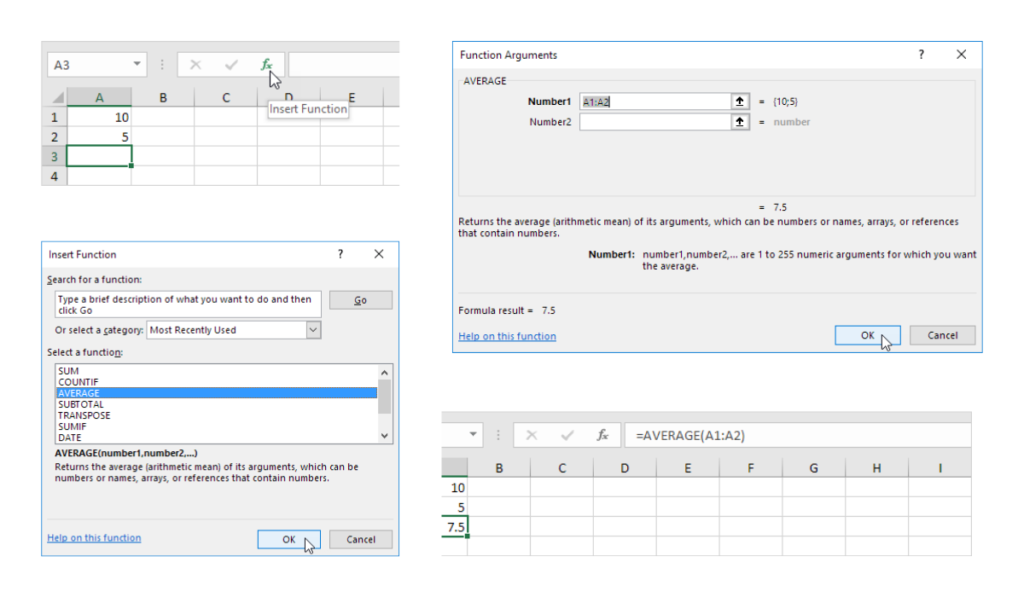
Steps:
- Select cell A3 and press Delete to remove the existing formula.
- Click the Insert Function (fx) button.
- Search for a function or browse by category.
- Select a function and click OK.
- Excel automatically fills in the arguments (for example,
A1:A2). - Click OK to apply the function.