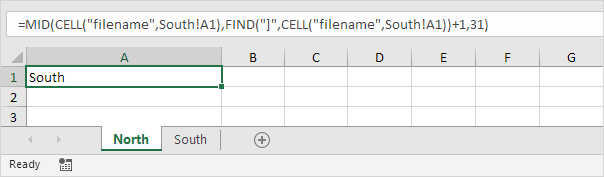
Excel does not have a built-in function that directly returns the worksheet name in a cell.
However, you can combine CELL, FIND, and MID functions to get it.
Table of Contents
Step 1: Get the file information
First, use the CELL function:
=CELL("filename",A1)
This formula returns the full file path, workbook name, and worksheet name.
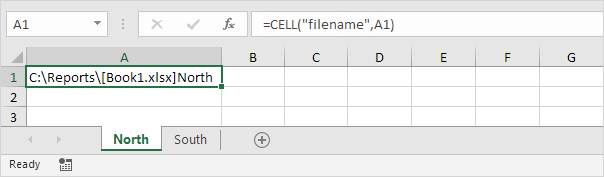
Example result:
C:\Users\User\Documents\[Report.xlsx]Sheet1
Note: You can replace A1 with any cell in the worksheet.
Step 2: Find where the sheet name starts
In the result above, the sheet name appears after the bracket ].
Use the FIND function to locate this bracket:
=FIND("]",CELL("filename",A1))
Then add +1 to get the starting position of the sheet name.
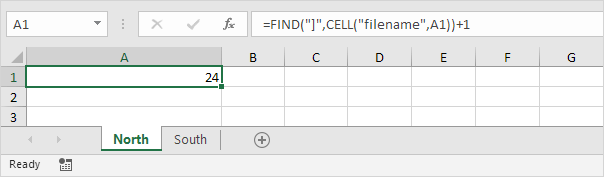
=FIND("]",CELL("filename",A1))+1
Step 3: Extract the sheet name
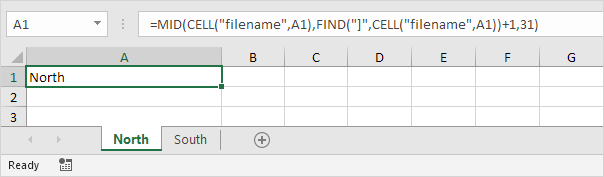
Next, use the MID function to extract the sheet name.
=MID(CELL("filename",A1),FIND("]",CELL("filename",A1))+1,31)
Explanation:
CELL("filename",A1)→ returns the full text with path and sheet nameFIND("]",...) + 1→ finds where the sheet name begins31→ maximum length of an Excel worksheet name
The result will be the current sheet name.
Step 4: Add text before the sheet name (optional)
If you want to include extra text, use the & operator.
Example:
="Sheet name: " & MID(CELL("filename",A1),FIND("]",CELL("filename",A1))+1,31)
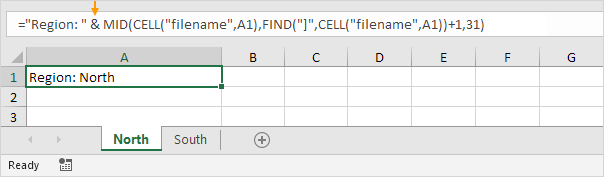
Result:
Sheet name: Sheet1
Step 5: Get the name of another worksheet
To return the name of a different worksheet, simply refer to a cell in that worksheet.
Example:
=CELL("filename",Sheet2!A1)
This will return information for Sheet2.