
Excel has a Spell Check feature that helps you find and correct spelling mistakes in your worksheet.
You can also add words to a custom dictionary or create AutoCorrect shortcuts.
Table of Contents
1. Check Spelling in a Worksheet
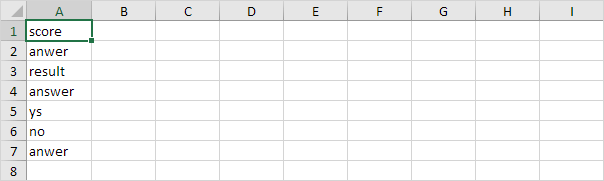
Step 1: Select where to check
- Click one cell to check spelling in the entire worksheet.
- If you select multiple cells, Excel will check only those cells.
Step 2: Start Spell Check
Go to: Review tab → Proofing group → Spelling
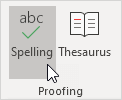
Or simply press F7 on your keyboard.
2. Correct a Spelling Error
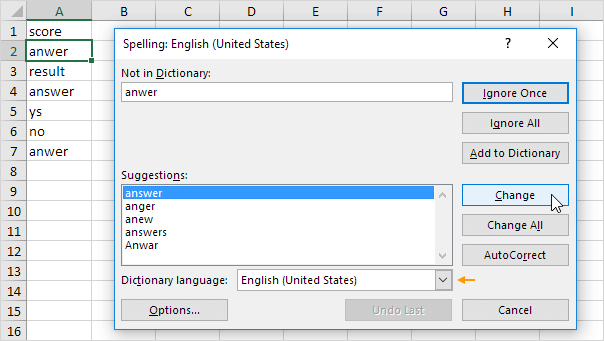
When Excel finds a mistake:
- It shows suggested words.
- Select the correct suggestion.
- Click Change to fix the word.
Tip: You can change the dictionary language using the drop-down list.
3. Fix All the Same Mistakes
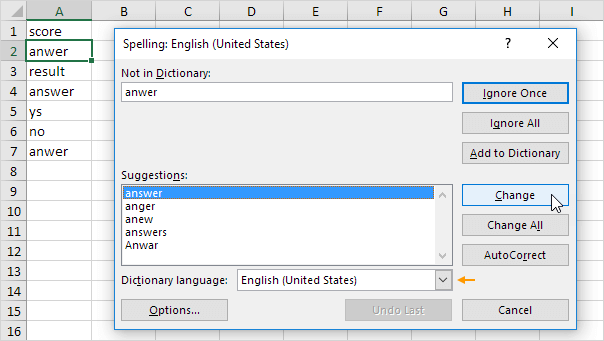
Click Change All if the same word appears many times.
Example:
If a word is wrong in A2 and A7, Excel will correct both at once.
4. Ignore a Word
Sometimes Excel marks a word as incorrect even though it is correct.
You have two options:
- Ignore Once → Skip this word one time
- Ignore All → Ignore this word everywhere in the worksheet
5. Add a Word to the Dictionary
If a word is correct but Excel doesn’t recognize it:
- Click Add to Dictionary
- Excel will remember the word and won’t mark it as an error again
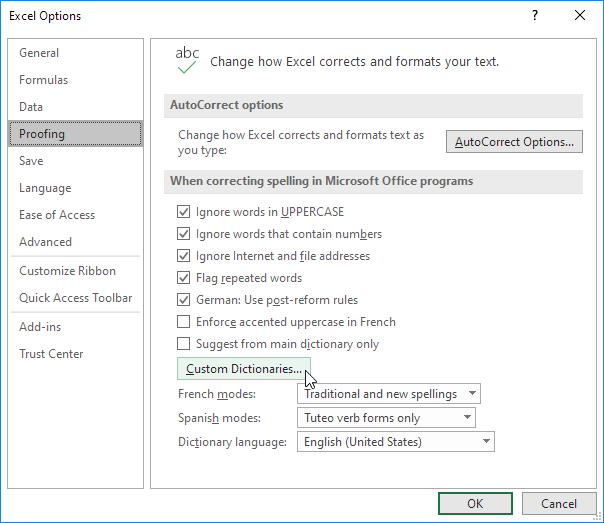
To edit this list: File → Options → Proofing → Custom Dictionaries
6. Use AutoCorrect
You can create shortcuts that automatically fix words.
Example:
- If you type anwer
- Excel can automatically change it to answer
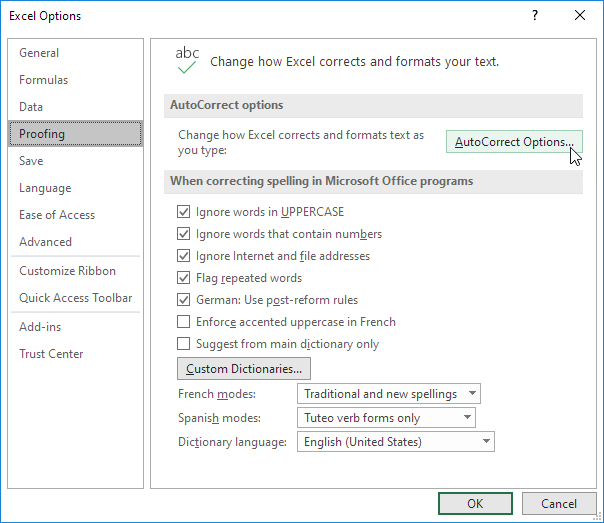
To set this up: Options → AutoCorrect Options
You can also add shortcuts like:
- typing ee.com → automatically becomes www.excel-easy.com
7. Check Spelling in the Formula Bar
If you want to check text inside the formula bar:
- Select the text
- Press F7

8. Check Spelling in the Entire Workbook
To check all sheets at once:
- Hold CTRL
- Select multiple worksheet tabs
- Press F7
Excel will check spelling across all selected sheets.

9. Default Spell Check Settings
By default, Excel:
- Ignores UPPERCASE words
- Ignores words with numbers
- Ignores web and file addresses
- Marks repeated words
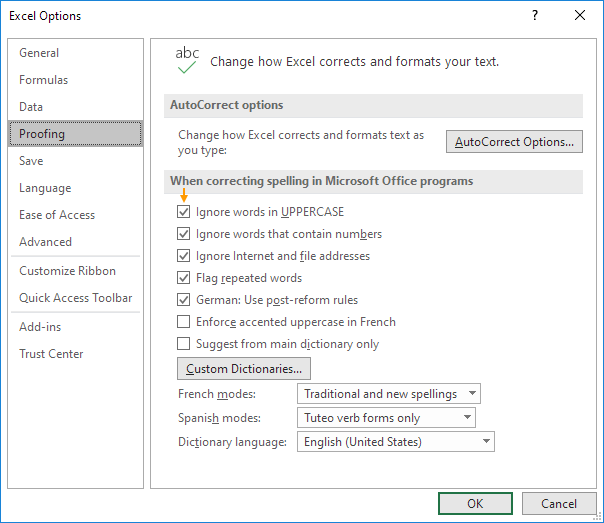
To change these settings: File → Options → Proofing