
Excel allows you to open and view two or more workbooks at once.
This is very useful when you want to compare data, copy information, or check differences between files.
Table of Contents
Step 1: Open More Than One Workbook
- Open Excel.
- Open at least two Excel files (for example: Sales.xlsx and Budget.xlsx).
👉 Make sure both files are open at the same time before continuing.
Step 2: Arrange All Open Workbooks
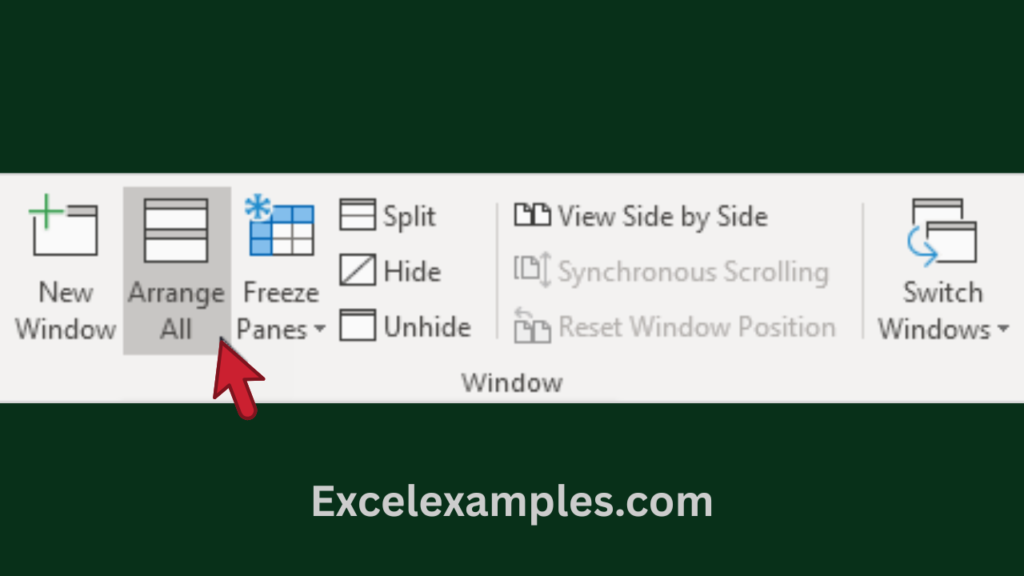
- Click the View tab at the top.
- Look for the Window group.
- Click Arrange All.
Step 3: Choose How the Workbooks Appear
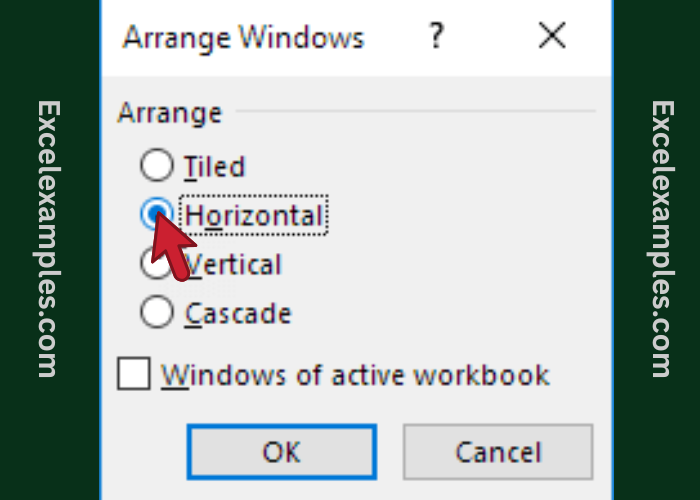
A small window will pop up.
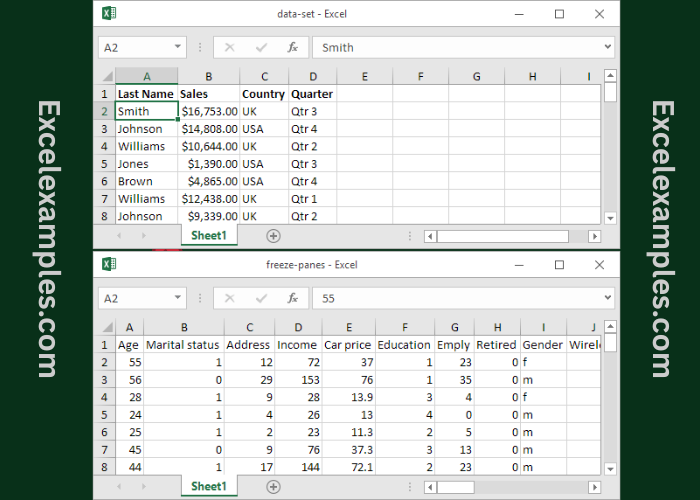
- Select Horizontal
(this places one workbook on top of the other). - Click OK.
Step 4: View Workbooks Side by Side (Optional but Useful)
- Stay on the View tab.
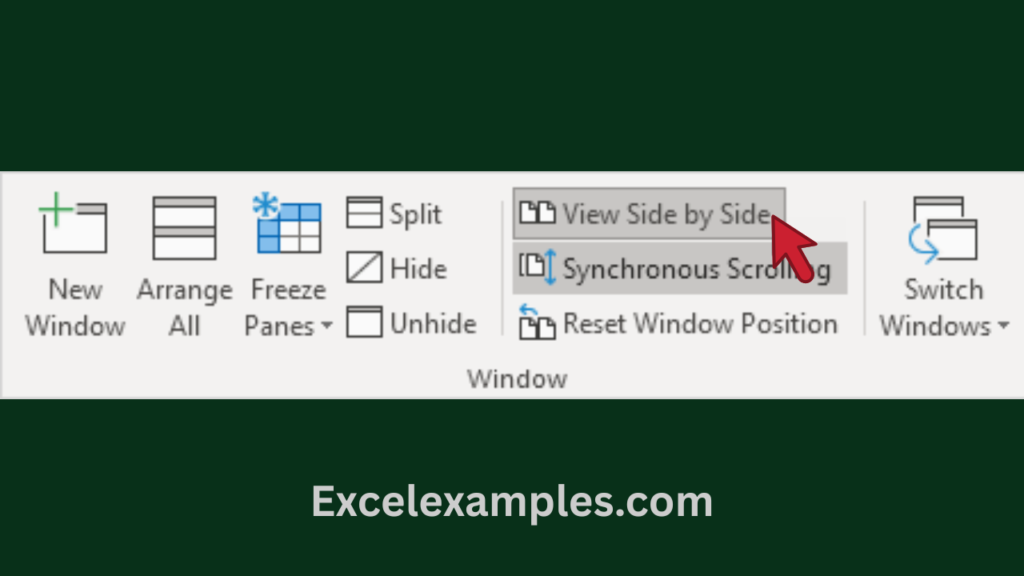
- In the Window group, click View Side by Side.
👉 Excel will automatically:
- Place two workbooks next to each other
- Turn on Synchronous Scrolling
Step 5: Scroll Both Workbooks Together
- Scroll up or down in one workbook
- The other workbook scrolls at the same time
✅ This is perfect for comparing rows and columns easily.
Helpful Tips for Beginners
✔ If scrolling together is confusing:
- Go to View → click Synchronous Scrolling to turn it off
✔ If workbooks look too small:
- Use Zoom (bottom-right corner of Excel)
✔ To return to normal view:
- Close one workbook or click Arrange All again
Summary
- Open 2 Excel files
- View → Arrange All → Horizontal
- View → View Side by Side