
Excel automatically saves temporary copies of your work in the background.
This means you can often recover your file even if:
- Excel crashes
- You accidentally click Don’t Save
- You forget to save a new file
Let’s go step by step.
Table of Contents
Case 1: Excel Crashed and Reopens
What happens?
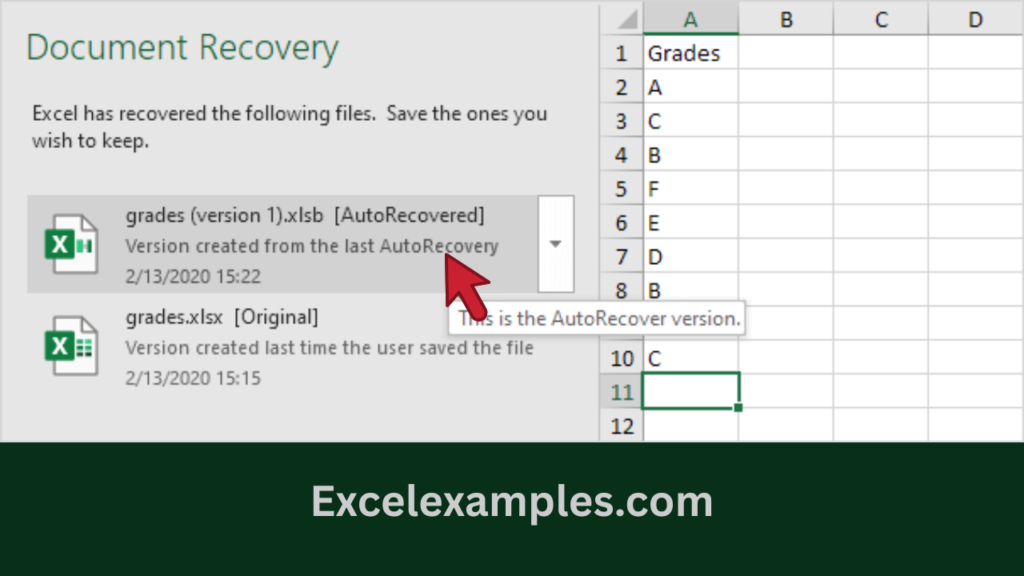
When Excel crashes, the next time you open Excel, you will see the Document Recovery Pane.
What to do:
- Open Excel again.
- Look at the Document Recovery panel on the left.
- Click the latest version of your file.
- Save it immediately.
Case 2: Recover a File That Was NEVER Saved
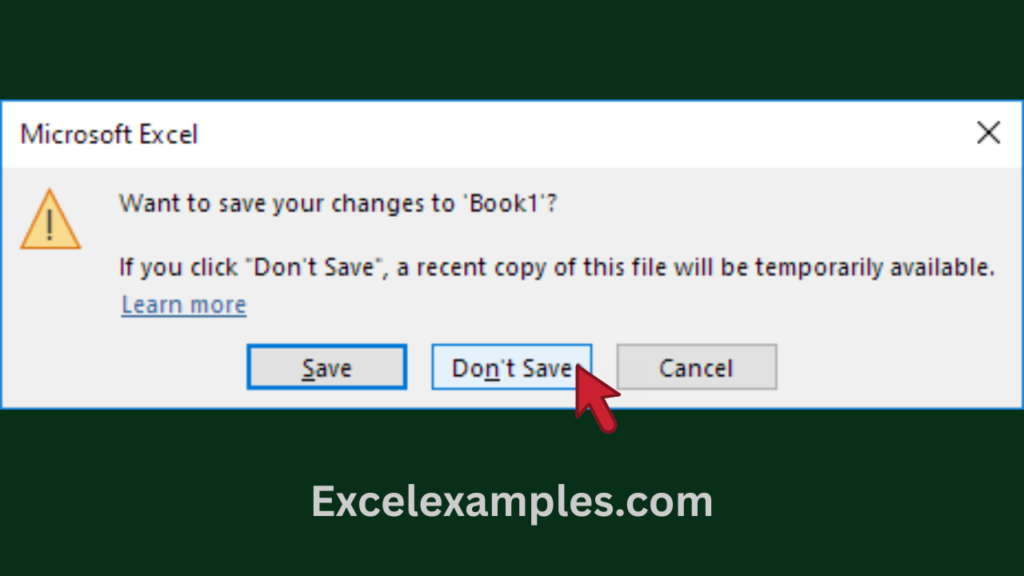
Example: You worked on Book1, then clicked Don’t Save or Excel crashed.
Steps to recover it:
- Open Excel.
- Click File.
- Click Info.
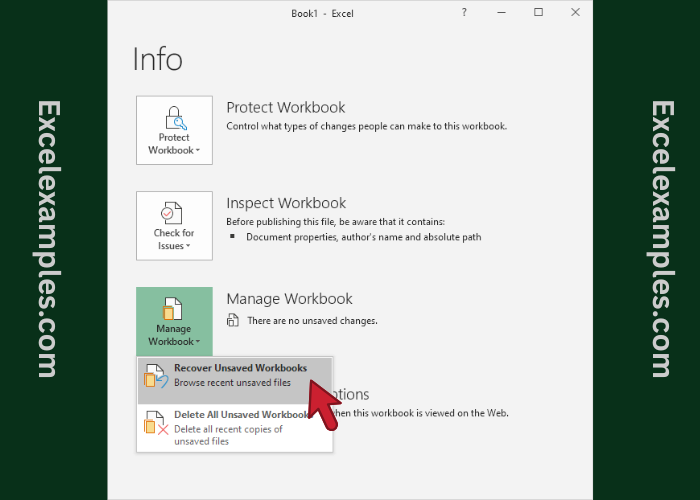
- Click Manage Workbook.
- Click Recover Unsaved Workbooks.
- Click the most recent file in the list.
- Click Save As and save it properly.
👉 Excel will tell you if a recent copy is available.
Case 3: Recover a File That WAS Saved Before
Example: You worked on grades.xlsx, made changes, then clicked Don’t Save or Excel crashed.
Steps to recover it:
- Open the Excel file (grades.xlsx).
- Click File.
- Click Info.
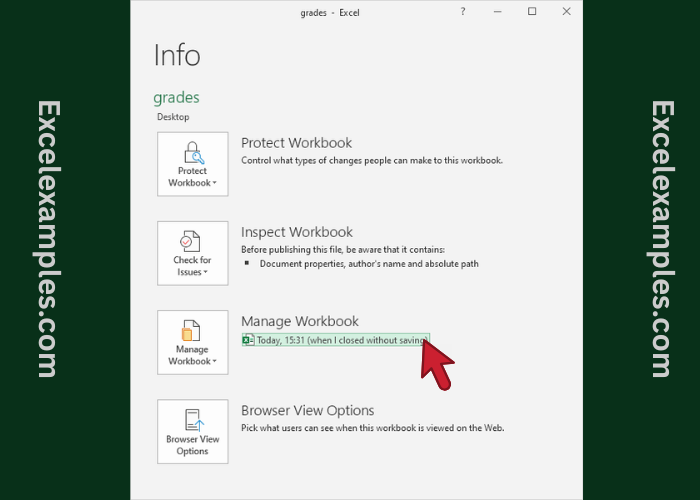
- Under Manage Workbook, click the latest autosaved version.
- Save the file.
Case 4: Go Back to an Older Version (Version History)
Excel keeps previous autosaved versions while you are working.
Steps:
- Open the Excel file.
- Click File.
- Click Info.
- Under Manage Workbook, select an older version.
- Restore or save it if needed.
⚠️ Important:
- Excel deletes old autosaved versions when you close the file
- Always recover versions before closing Excel
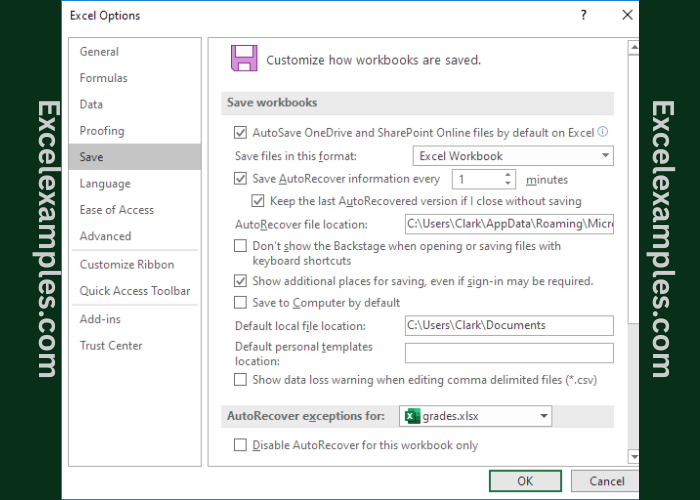
Change AutoRecover Settings (Recommended)
You can make Excel save more often.
Steps:
- Click File.
- Click Options.
- Click Save.
- You can:
- Change how often AutoRecover saves (for example: every 1–5 minutes)
- Change where AutoRecover files are stored
Beginner Tips (Very Important)
✔ Always save your file as soon as you start working
✔ Press Ctrl + S often
✔ If Excel crashes, do not panic—recovery is usually possible
✔ Recover first → save → then continue working