Whether you are dealing with numerical data affected by text formatting or alphanumeric strings, removing unwanted leading zeros in Excel is easier than you might think.
This guide covers two simple methods: a quick Paste Special trick for numbers, and a custom formula to strip leading zeros from text while keeping the rest of your data intact.
Method 1: Remove Leading Zeros from Numbers (The Paste Special Trick)
Often, numbers display leading zeros because they are formatted as text, preceded by an apostrophe, or set to a custom number format. You can strip all of these leading zeros simultaneously using an empty cell.
Step-by-Step Instructions:
- Select any empty cell in your spreadsheet and copy it (press
Ctrl+C). - Highlight the range of cells containing the numbers with leading zeros.
- Right-click the highlighted range and select Paste Special (or use the shortcut
Ctrl+Alt+V). - In the Paste Special dialog box, look under the “Operation” section and select Add.
- Click OK.
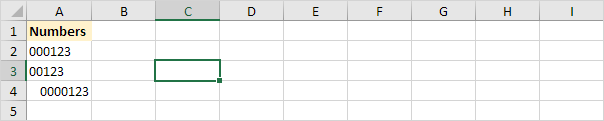
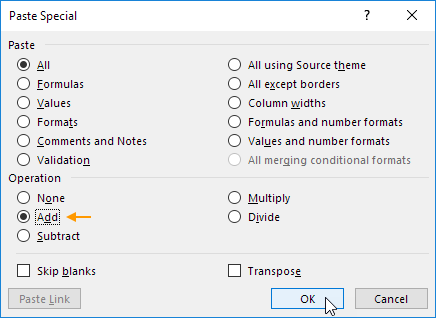
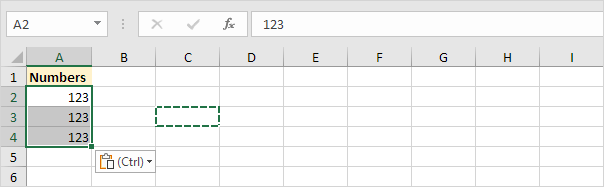
Why it works: By forcing Excel to “add” an empty cell (which has a value of zero) to your data, you trigger Excel to re-evaluate the formatting. It automatically converts cells that were previously recognized as text back into standard “General” numbers, instantly dropping any leading zeros.
Method 2: Strip Leading Zeros from Text Strings (The Formula Method)
If your data contains text (like product codes or IDs) and you only want to remove the zeros at the very beginning without losing any zeros in the middle or end, you can use a clever formula.
Step-by-Step Instructions:
- Assuming your first piece of text data is in cell A2, click into an adjacent empty cell (like B2) and enter the following formula:
=IF(LEFT(A2) = "0", RIGHT(A2, LEN(A2)-1), A2) - Press Enter, then copy the formula down the column to apply it to your other rows. Note: This will remove exactly one leading zero from each cell.
- Because some cells might have multiple leading zeros (e.g., “00045A”), keep the B column range highlighted and drag the fill handle to the right across a few columns.
- Stop dragging once the data stops changing. Dragging a few extra columns won’t hurt your data; once all leading zeros are gone, the formula simply copies the remaining text as-is.
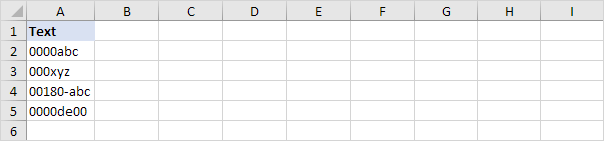
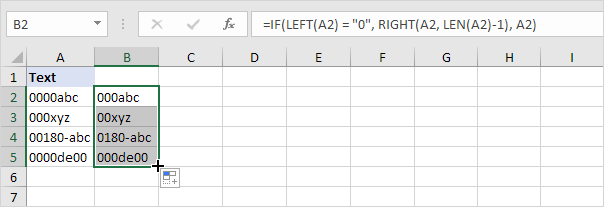
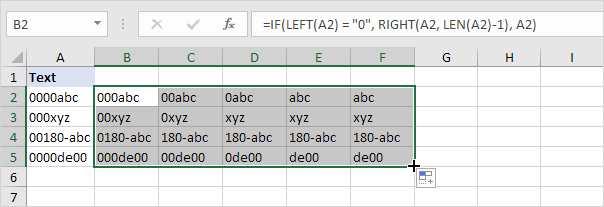
Why it works: This formula uses a logical step-by-step process.
- The LEFT function checks if the very first character of your string is a “0”.
- If it is a zero, the RIGHT and LEN functions team up to calculate the total length of your text, subtract one, and extract everything except that first zero.
- If the first character is not a zero, it simply leaves the text exactly as it is.
- By dragging the formula across multiple columns, you are continually checking and “peeling off” one zero at a time until they are all gone.