
In Excel:
- Numbers are usually aligned to the right
- Text is aligned to the left
Sometimes, you may want numbers to behave like text (for IDs, phone numbers, etc.).
Table of Contents
1. Change Number Format to Text
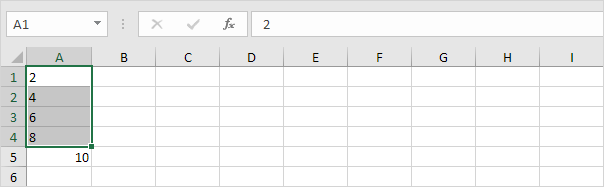
- Select the cells (e.g., A1:A4)
- Go to Home → Number Format
- Choose Text
Now, anything you type will be treated as text (even numbers)
2. Add an Apostrophe
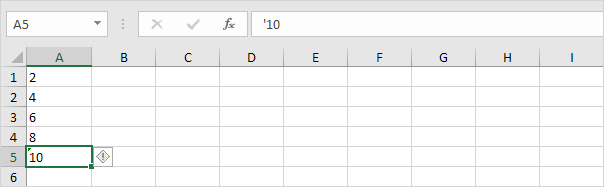
- Type an apostrophe before the number
Example:'12345
Excel will treat it as text, but the apostrophe won’t show in the cell
3. Use the TEXT Function
When you want to:
- Combine numbers with text
- Keep number formatting (like commas, %, dates)
Use this formula:
=TEXT(value, format)
3a. Without TEXT function
If you combine text and number like:

The number may lose its formatting
3b. With TEXT function

Keeps commas for large numbers
Example: 10000 → 10,000
3c. Format as Percentage

0%→ no decimal (75%)0.0%→ one decimal (75.5%)0.00%→ two decimals (75.55%)
3d. Format as Date

Turns numbers into readable dates