Formatting cells in Excel allows you to change how data looks without changing the actual values. You can adjust number formats, alignment, fonts, borders, and more to make your spreadsheet clearer and easier to read.
Quick Formatting Using the Home Tab
For fast formatting, use the tools on the Home tab:
- Number formats: General, Number, Currency, Percentage
- Font options: Font type, size, color, bold
- Alignment: Left, center, right, wrap text
- Borders and fill: Add borders or background color
These options are best for quick and common formatting tasks.
Using the Format Cells Dialog Box
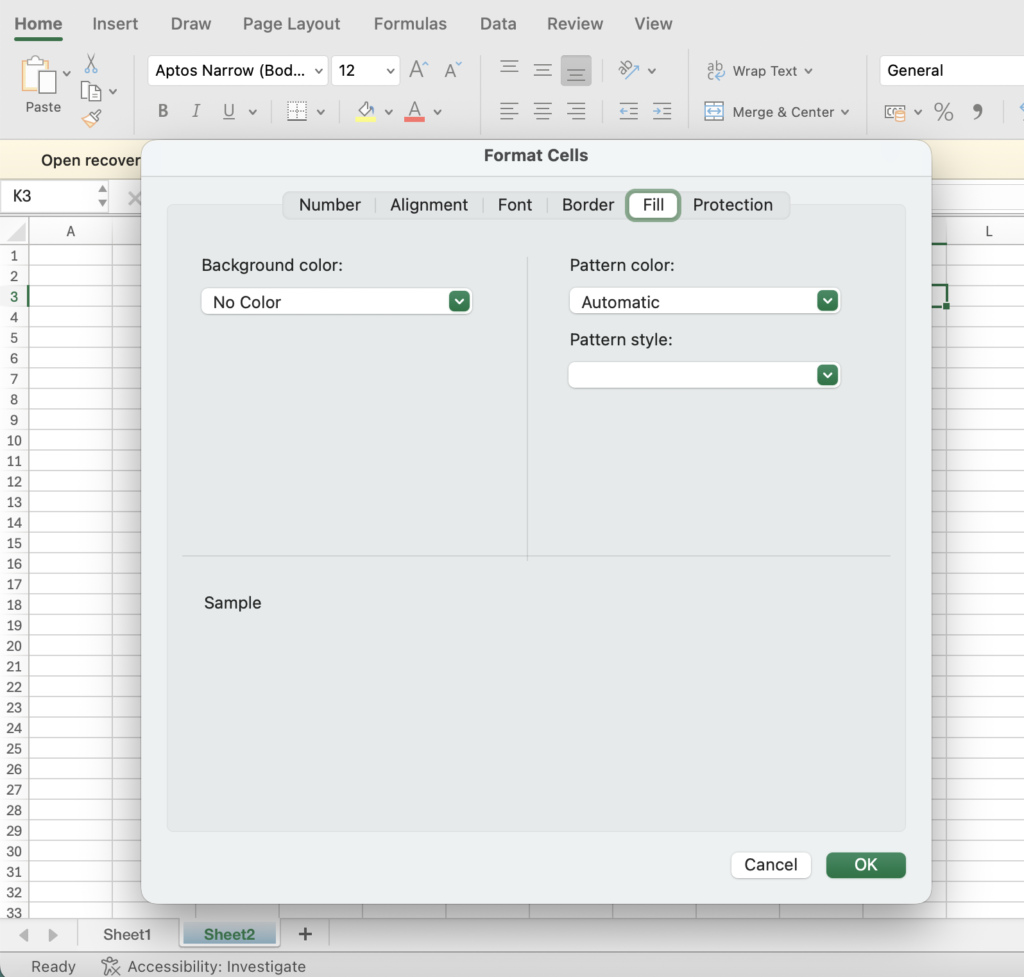
For more control, open the Format Cells dialog box:
- Right-click the selected cell(s) and choose Format Cells
- Or press Ctrl + 1
This dialog box provides detailed formatting options through multiple tabs.
Format Cells Tabs Explained
- Number – Controls how numbers, dates, and times are displayed
- Alignment – Adjusts text alignment, orientation, and wrapping
- Font – Changes font style, size, and color
- Border – Adds and customizes cell borders
- Fill – Applies background colors or patterns
- Protection – Locks or hides cells when the worksheet is protected
When to Use Format Cells
Use the Home tab for quick changes.
Use Format Cells when you need precise control over how data is displayed.
Key Point to Remember
Formatting changes appearance, not the actual data.
Excel calculations always use the original values, regardless of how the cells are formatted.
Summary
The Format Cells feature is essential for creating clean, professional Excel spreadsheets. By using both quick formatting tools and the Format Cells dialog box, you can present data clearly and accurately.