Zooming in Excel helps you see your worksheet better.
You can make the screen bigger or smaller without changing the actual data.
Table of Contents
Method 1: Quickly Zoom Using the Status Bar
This is the fastest way to zoom.
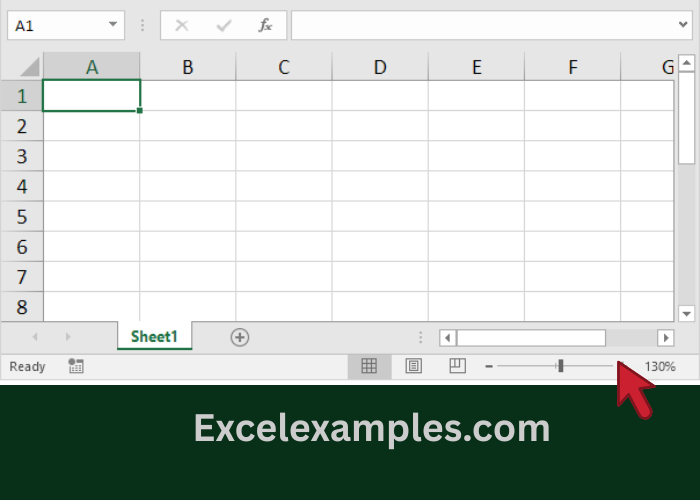
- Look at the bottom-right corner of the Excel window.
- You will see:
- – (minus) to zoom out
- + (plus) to zoom in
- Click + to make the worksheet bigger.
- Click – to make it smaller.
Method 2: Zoom to an Exact Percentage
Use this when you want a specific zoom level, like 100% or 150%.
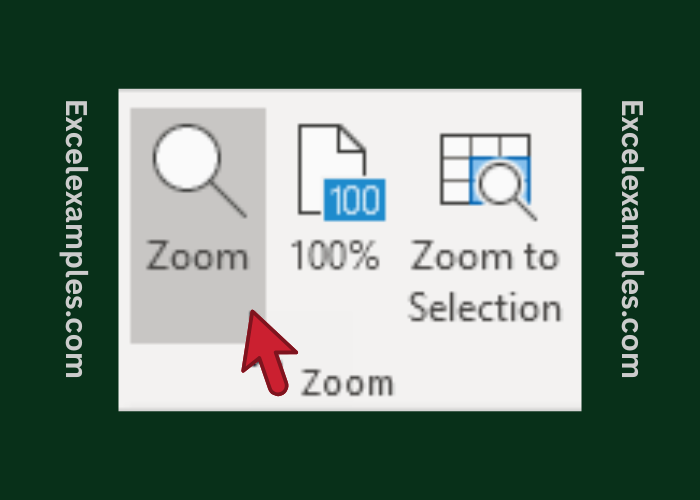
- Click the View tab.
- In the Zoom group, click Zoom.
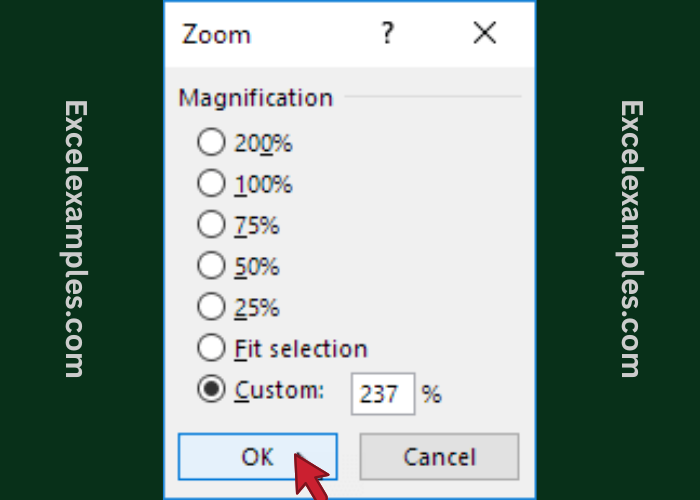
- Type a number between 10 and 400 (for example: 120).
- Click OK.
Method 3: Zoom to a Selected Area
This method is perfect when you want to focus on specific cells only.
- Select the cells you want to view.
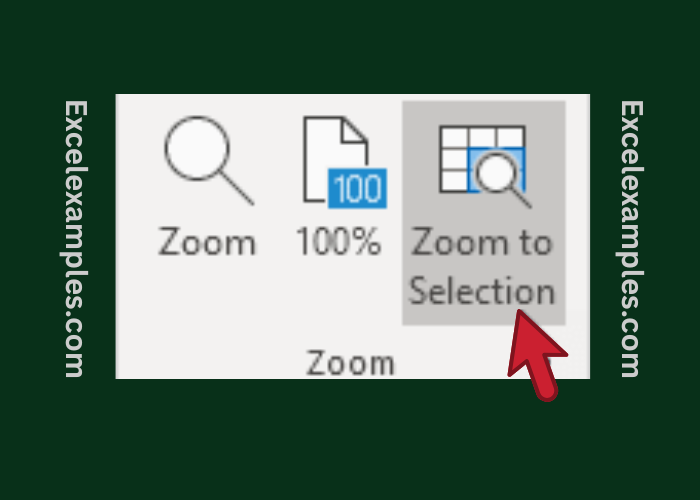
- Click the View tab.
- In the Zoom group, click Zoom to Selection.