You can merge cells to create one larger cell.
This is useful when you want a title or label across multiple columns.
Table of Contents
1. Merge Cells (Basic Use)
Steps:
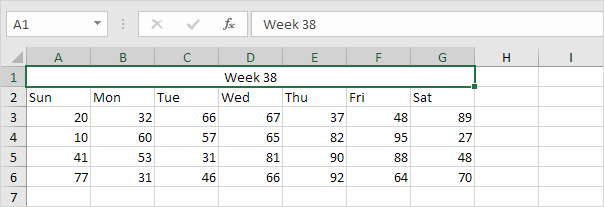
- Type a label in a cell (e.g., A1)
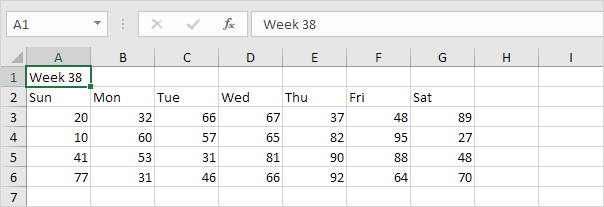
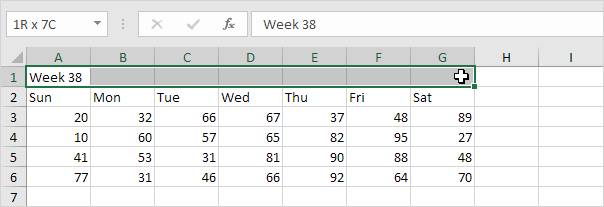
- Select a range (e.g., A1:G1)
- Go to Home tab
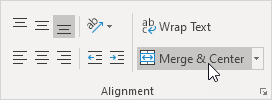
- Click Merge & Center
Result:
⚠️ Important Warning
If you merge cells with multiple values:
- Excel ONLY keeps the top-left cell
- All other values are deleted
👉 Example:
- A1 = Hello
- B1 = World
- After merge → only Hello remains ❗
2. Unmerge Cells
- Click Merge & Center again to unmerge
- Or press Ctrl + Z to undo
👉 Note: Deleted values will NOT come back unless you undo
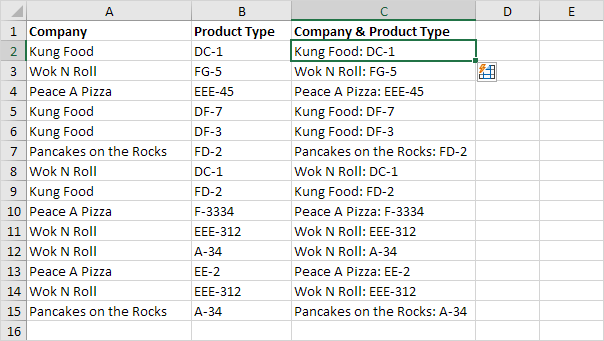
3. Use Flash Fill
Steps:
- In a new column, type the result manually
- Example:
Company: Product
- Example:
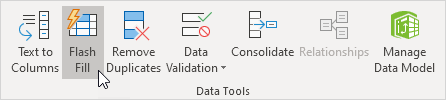
- Press Ctrl + E (or Data → Flash Fill)
Result: