
Sometimes you need to compare data from two worksheets in the same workbook. Excel allows you to open multiple views of the same file so you can see different sheets simultaneously.
Table of Contents
1. Open Your Workbook
Start by opening the Excel workbook that contains the worksheets you want to compare.
2. Create Another Window of the Workbook
Go to:
View tab → Window group → New Window
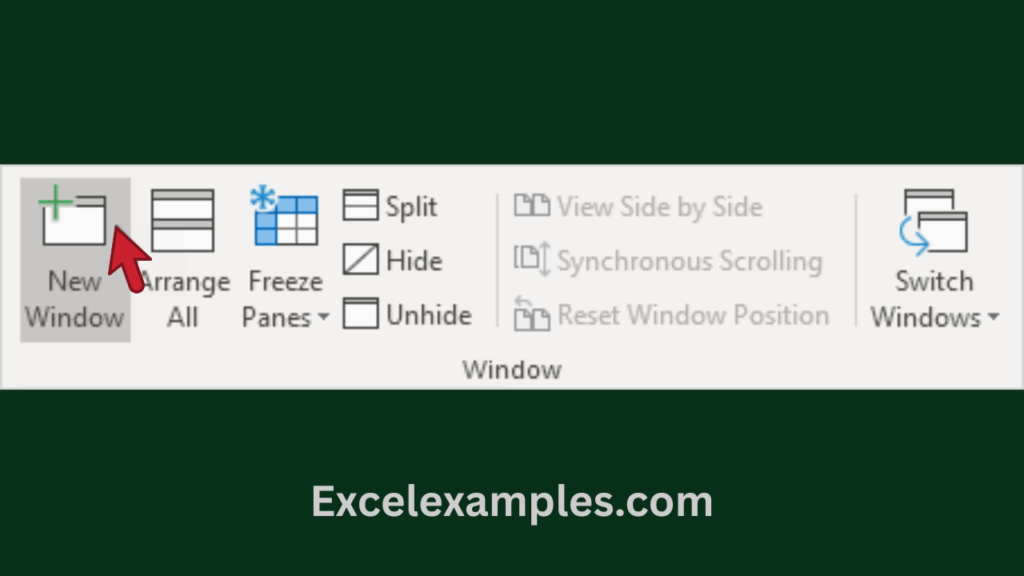
Excel will open another window of the same workbook.
Both windows display the same file, but you can view different worksheets in each window.
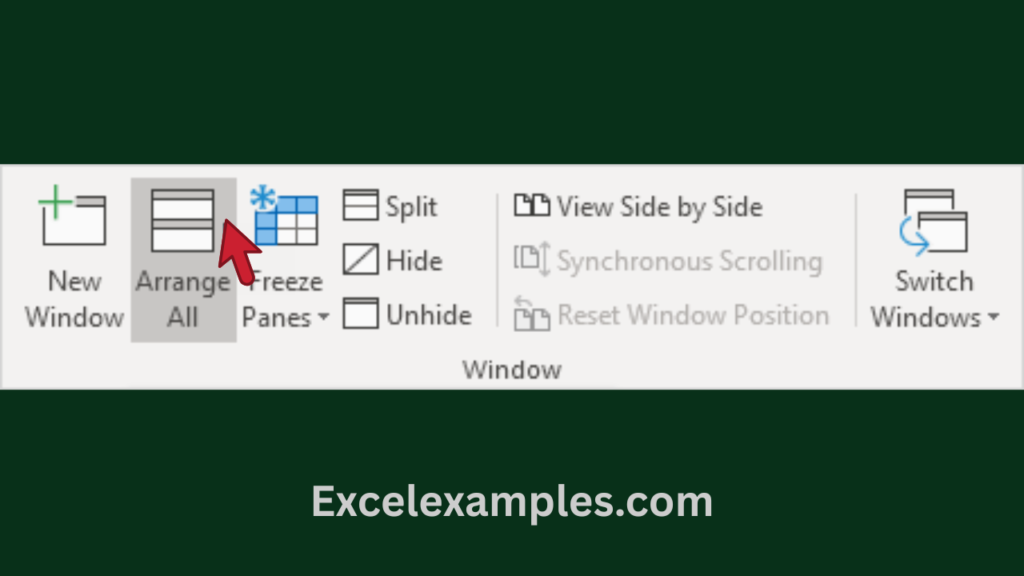
3. Arrange the Windows
Next, organize the windows so you can see them at the same time.
Go to: View tab → Window group → Arrange All
4. Choose an Arrangement Layout
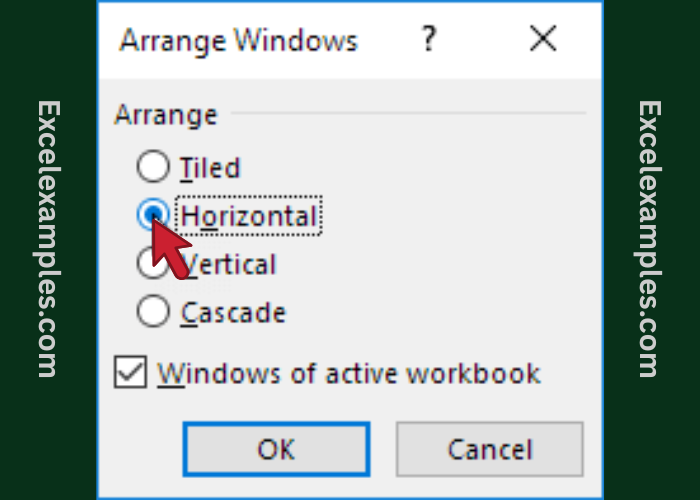
Select how you want the windows to appear.
For example:
- Horizontal – windows are stacked top and bottom
- Vertical – windows appear side by side
- Cascade – windows overlap each other
- Tiled – windows are arranged in a grid
Select Horizontal for this example, then click OK.
5. Confirm Two Windows Are Open
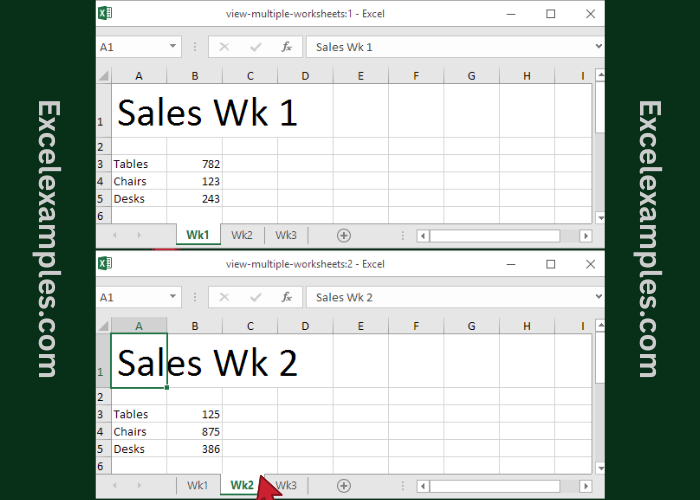
You will now see two windows of the same workbook.
Their titles will look like this:
- WorkbookName :1
- WorkbookName :2
This means Excel has created two views of the same file.
6. Open Different Worksheets in Each Window
In one window, select the worksheet Wk1.
In the other window, select Wk2.
Now you can view both worksheets at the same time, making it easy to compare data (for example, sales in Week 1 vs Week 2).
Important:
Any changes you make in one window will automatically appear in the other window, because both windows are connected to the same workbook.
7. Scroll Both Worksheets Together
To scroll both worksheets at the same time:
Go to: View tab → View Side by Side
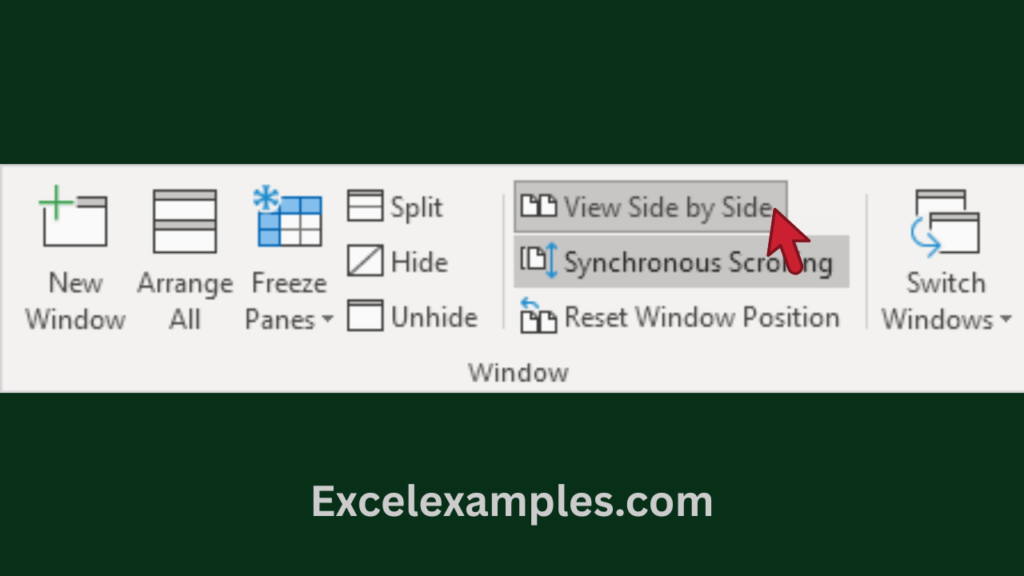
Excel will align the windows and enable Synchronous Scrolling by default.
When you scroll in one worksheet, the other worksheet moves at the same time.
Useful Keyboard Shortcuts for Switching Worksheets
Excel also provides quick shortcuts to move between worksheets.
- Ctrl + Page Down → Move to the next worksheet
- Ctrl + Page Up → Move to the previous worksheet
These shortcuts help you navigate large workbooks much faster.