
Comments in Excel help you start a conversation or give feedback about a cell.
Excel also still supports the old style comments, which are now called Notes.
Table of Contents
Insert a Comment
Follow these steps to add a comment to a cell.
1. Select a cell
Click the cell where you want to add a comment.
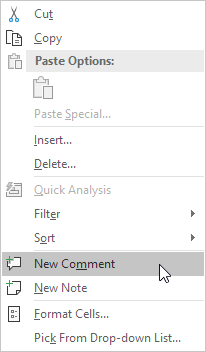
2. Insert a comment
Right-click the cell and choose New Comment.
Tip: If you want the old style comment, choose New Note instead.
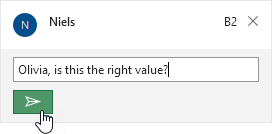
3. Write your comment
Type your comment and click Post.
After posting, Excel shows a purple indicator in the top-right corner of the cell.
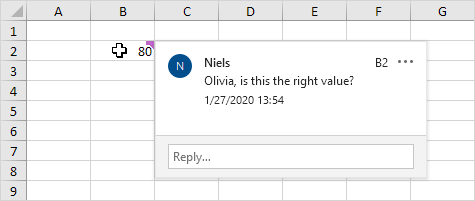
4. View the comment
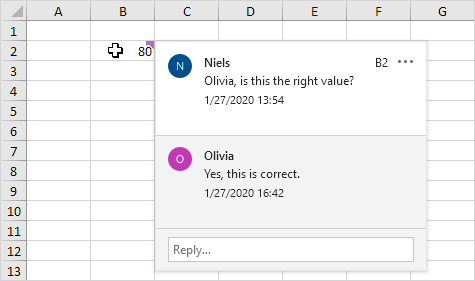
Move your mouse over the cell to see the comment.
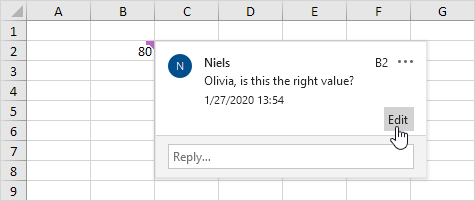
5. Edit a comment
Hover over the comment and click Edit to change the text.
6. Reply to a comment
Other people can reply to your comment, which makes it easy to have discussions inside the Excel file.
Tip: If you save the file on OneDrive, you can easily share it and collaborate with others.
Delete a Comment
To remove a comment:
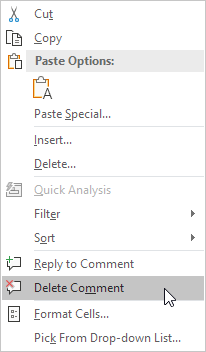
- Select the cell that has the comment.
- Right-click the cell.
- Click Delete Comment.
Show All Comments
If you want to see all comments in the workbook:
Method 1
- Go to the Review tab.
- In the Comments group, click Show Comments.
Method 2
Click the Comments button in the top-right corner of the ribbon.
Excel will open the Comments pane, where you can:
- View all comments
- Edit comments
- Reply to comments
- Delete comments