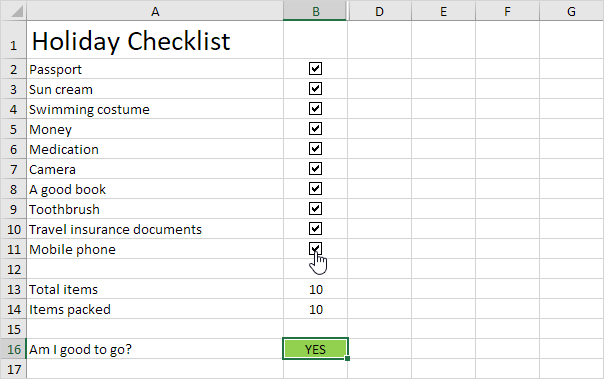
You can add check marks (✓), crosses (✗), or clickable checkboxes in Excel to create things like to-do lists or tracking sheets.
Table of Contents
1. Insert a Check Mark
Steps:
- Select a cell (e.g., A1)
- Press Shift + P → you’ll see “P”
- Change the font to Wingdings 2

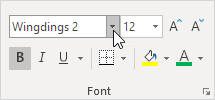
✅ Result: A check mark appears

👉 Make it nicer:
- Change color → Green
- Increase size
- Make it Bold
2. Insert a Cross (X)
Steps:
- Press Shift + O
- Change font to Wingdings 2
✅ Result: A cross (✗)

👉 You can color it Red for better visibility
3. Align the Symbol
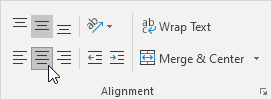
- Go to Home → Alignment
- Click:
- Center (horizontal)
- Middle Align (vertical)
Your check mark is perfectly centered
5. Insert Check Mark from Symbols
Steps:
- Go to Insert → Symbol
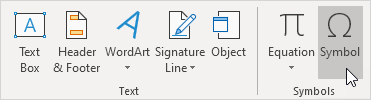
- Choose font: Wingdings 2
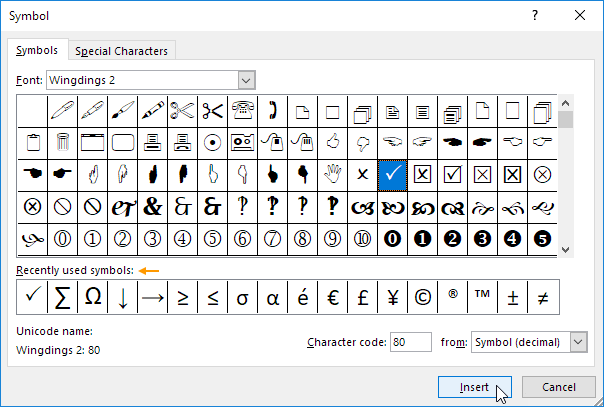
- Select a check mark
- Click Insert
👉 You can also find:
- Boxed check marks ☑
- Other symbols
6. Quick Copy Method
You can simply copy this:

Then paste into Excel (Ctrl + V)
7. Use Check Mark in a Formula
You can display a check mark automatically.
Example:
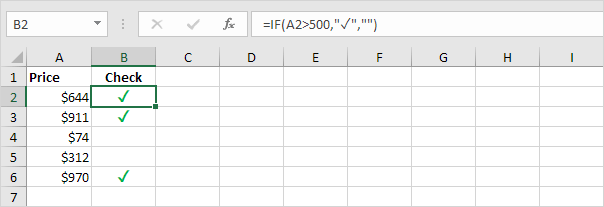
👉 If value > 500 → show ✓
👉 Otherwise → show nothing
8. Insert Clickable Checkboxes
You can add real checkboxes:
Steps:
- Enable Developer tab (if not visible)
- Go to Developer → Insert
- Choose Checkbox
- Click in the sheet to place it
✅ Now users can click to check/uncheck