In Excel, Currency and Accounting formats are used to display money values.
They look similar, but they behave slightly differently.
Table of Contents
1. Apply Currency Format
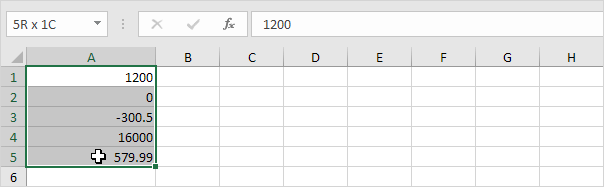
Step 1: Select the cells
Select the range of cells that contains numbers.
Step 2: Apply the format
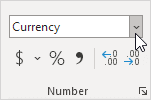
Go to: Home → Number group → Currency
Shortcut: Ctrl + Shift + 4
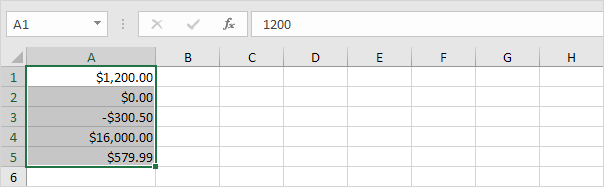
Result
The Currency format displays the currency symbol right next to the number.
2. Apply Accounting Format
Step 1: Select the cells
Select the same range.
Step 2: Apply Accounting format
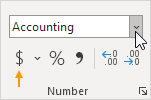
Go to: Home → Number group → Accounting
Or simply click the $ button.
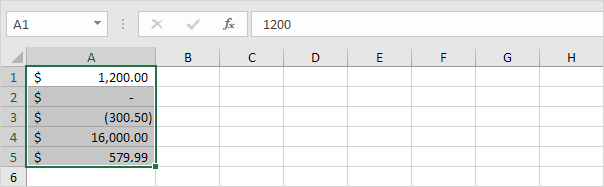
Result
The Accounting format:
- Aligns currency symbols in a column
- Aligns decimal points
- Shows zero values as a dash (—)
- Displays negative numbers in parentheses
Main Difference
| Currency | Accounting |
|---|---|
| Symbol is next to the number | Symbol is aligned in a column |
| Zero appears as 0.00 | Zero appears as — |
| More flexible negative formats | Usually shows negatives in parentheses |
3. Format Negative Numbers
You can customize how negative numbers appear.
Steps
- Select a cell with a negative number.
- Right-click the cell.
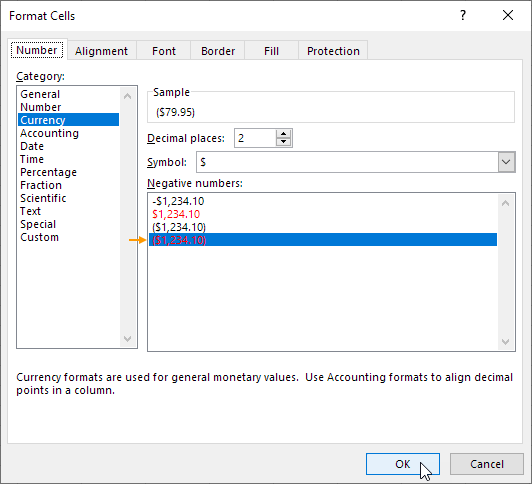
- Click Format Cells (or press Ctrl + 1).
- Choose Currency.
- Under Negative Numbers, select a style.

Result:

4. Use Accounting Underlines
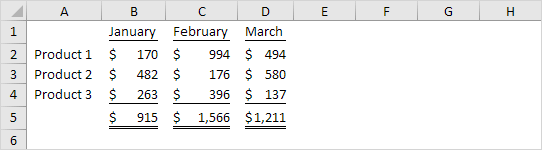
Excel also has special underlines used in financial reports.
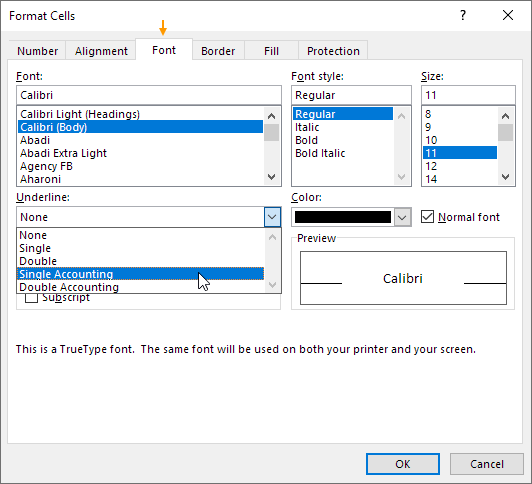
- Press Ctrl + 1 to open Format Cells.
- Go to the Font tab.
- Choose:
- Single Accounting underline
- Double Accounting underline
These are often used in financial statements and reports.