Excel already has many built-in formats like Currency, Date, Time, Percentage, etc.
But sometimes, they don’t match what you need — that’s when Custom Number Format is useful.
Table of Contents
1. Leading Zeros
Instead of typing extra zeros manually, let Excel do it for you.
Steps:
- Type
41into a cell - Right-click → Format Cells
- Choose Custom
- Type:
00000 - Click OK
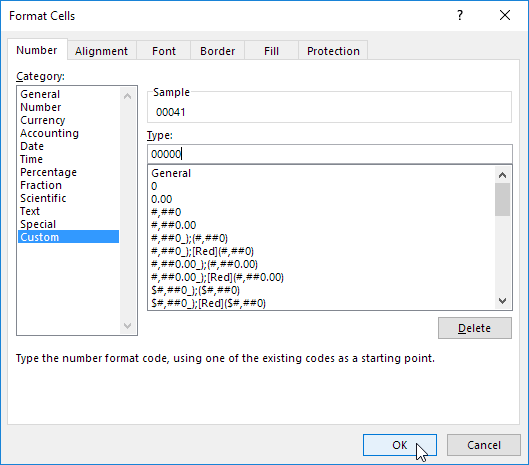
Result:

2. Decimal Places
You can decide how many decimal places to show:
0→ no decimals →8390.0→ 1 decimal →839.10.00→ 2 decimals →839.13

3. Text After Numbers
You can attach text like units (ft, kg, etc.)

Example:
- Format:
0.0 "ft" - Result:
839.1 ft
Note: Excel still treats it as a number → you can calculate normally.
4. Format Large Numbers (Thousands / Millions)
Use commas to simplify big numbers:
,→ thousands,,→ millions

Example:
- Format:
0.0,, "M" 1000000→1.0 M2500000→2.5 M
5. Repeat Characters
You can repeat a character to fill space.

Example:
- Format:
@ *- - Text:
Hi - Result:
Hi------
👉 @ means “show text”
6. Colors & Conditions
You can format:
- Positive numbers
- Negative numbers
- Zero values
- Text
👉 Each part is separated by ;
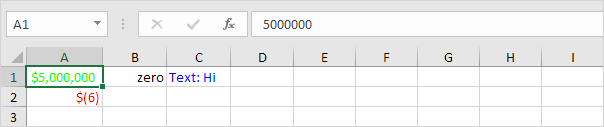
Meaning:
- Positive → Green
- Negative → Red with parentheses
- Zero → shows “zero”
- Text → Blue with “Text: “
7. Date & Time
Excel stores dates as numbers (e.g., 45443), but you can display them nicely.
Steps:
- Enter a number (like
45443) - Format Cells → Date (choose any format)
- Go to Custom
- Edit format like: mm/dd/yyyy, dddd
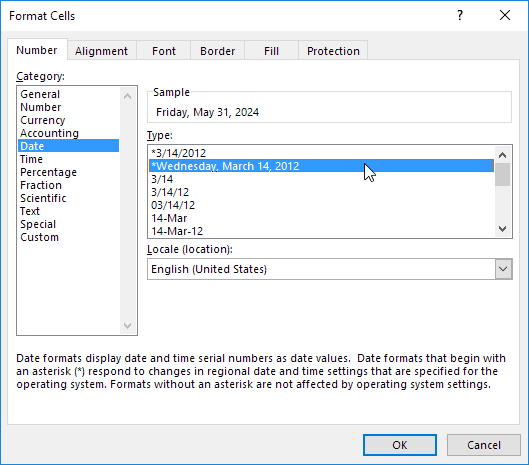
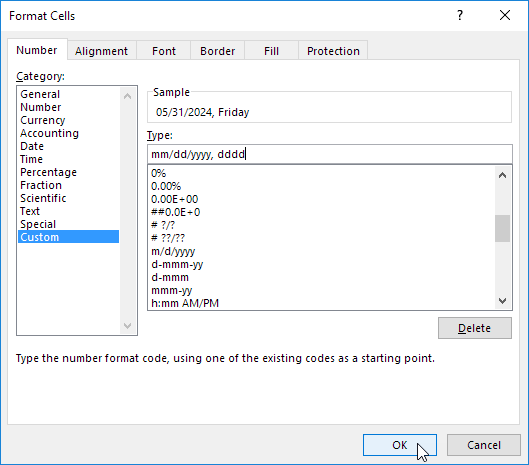
Result:

Use the following codes to format dates in Excel:
| Format Code | Explanation |
|---|---|
| d | Displays the day as a number without a leading zero (1-31). |
| dd | Displays the day as a number with a leading zero (01-31). |
| ddd | Displays the day as an abbreviated name (Mon, Tue). |
| dddd | Displays the full name of the day (Monday, Tuesday). |
| m | Displays the month as a number without a leading zero (1-12). |
| mm | Displays the month as a number with a leading zero (01-12). |
| mmm | Displays the month as an abbreviated name (Jan, Feb). |
| mmmm | Displays the full name of the month (January, February). |
| yy | Displays the last two digits of the year (24 for 2024). |
| yyyy | Displays the full year (2024). |